Adobe Photoshop 7.0 for Windows 10 or Windows 11 is not supported by Adobe, because the program is from 2002 and is older than both. Many people report that it still installs and runs, but nobody can promise that on your PC. You need your own genuine licence, and you may have to change a few Windows settings.
This page deals with the Windows side: checking your PC, compatibility settings, administrator rights, large drives, memory, sharp screens, virtual machines and common faults. This site is independent. It is not Adobe, and it does not supply the software or serial numbers.
Can Adobe Photoshop 7.0 run on Windows 10 and 11?
It often can, but without any official support. Photoshop 7.0 was released in 2002. Its reported system requirements list Windows 98, Me, NT 4.0, 2000 and XP. Windows Vista, 7, 8, 10 and 11 all arrived later, so the program was never designed or tested for them.
Adobe does not sell or offer a Photoshop 7.0 download today either. If something breaks on a new PC, you cannot expect an update or a support answer for it.
What "not supported" means for you
"Not supported" does not mean "blocked". Windows will usually let you start an old setup program. It means the following things.
- No one has checked the program against your version of Windows.
- A Windows update can change how it behaves.
- New camera files, new phone formats and new hardware may not work with it.
- You solve faults yourself, with community advice and trial and error.
When someone says Photoshop 7.0 works on Windows 10, they usually mean it opens, edits JPG and PSD files and saves them. That does not prove that scanning, printing, plug-ins or a pen tablet work as well. Test the jobs you actually do before you depend on it for customers.
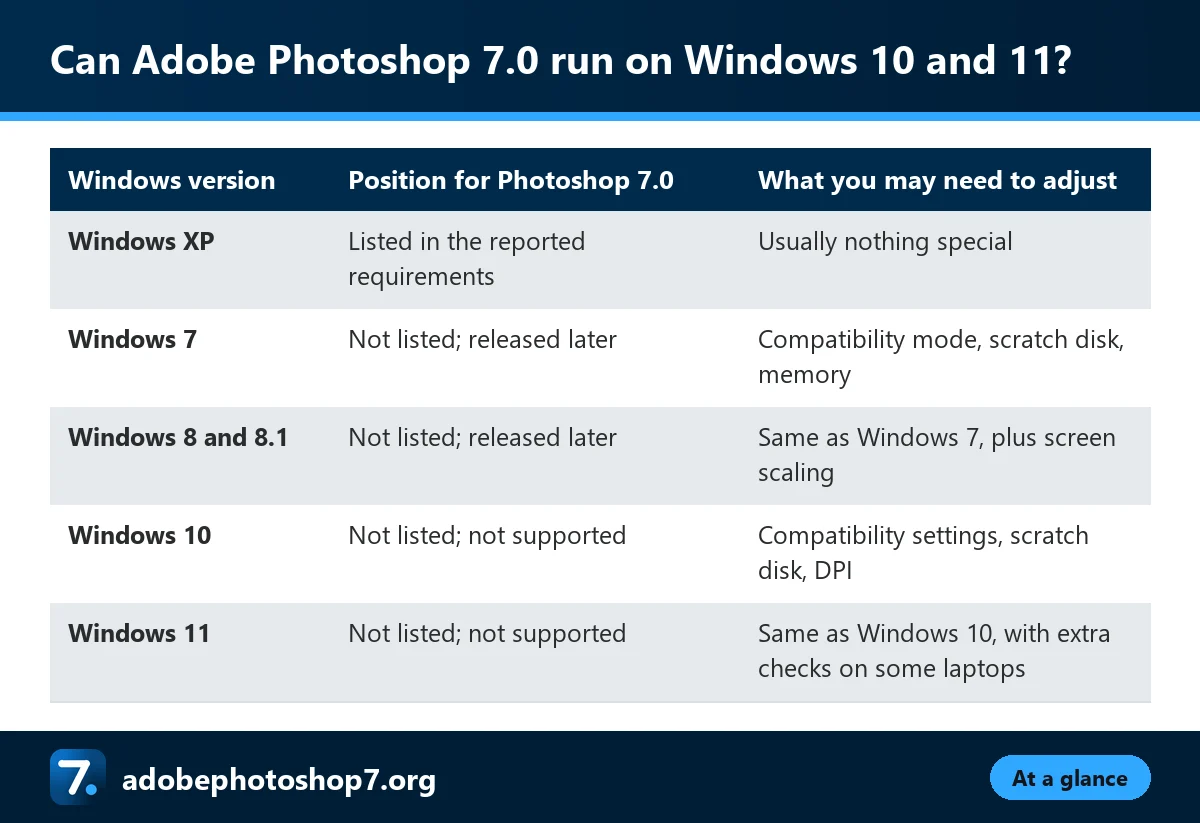
| Windows version | Position for Photoshop 7.0 | What you may need to adjust |
|---|---|---|
| Windows XP | Listed in the reported requirements | Usually nothing special |
| Windows 7 | Not listed; released later | Compatibility mode, scratch disk, memory |
| Windows 8 and 8.1 | Not listed; released later | Same as Windows 7, plus screen scaling |
| Windows 10 | Not listed; not supported | Compatibility settings, scratch disk, DPI |
| Windows 11 | Not listed; not supported | Same as Windows 10, with extra checks on some laptops |
If you searched for "Adobe Photoshop 7.0 for Windows 7, 8, 10", the table is the short answer. XP is the newest system on the original list. Everything after it is a "try and see" case.
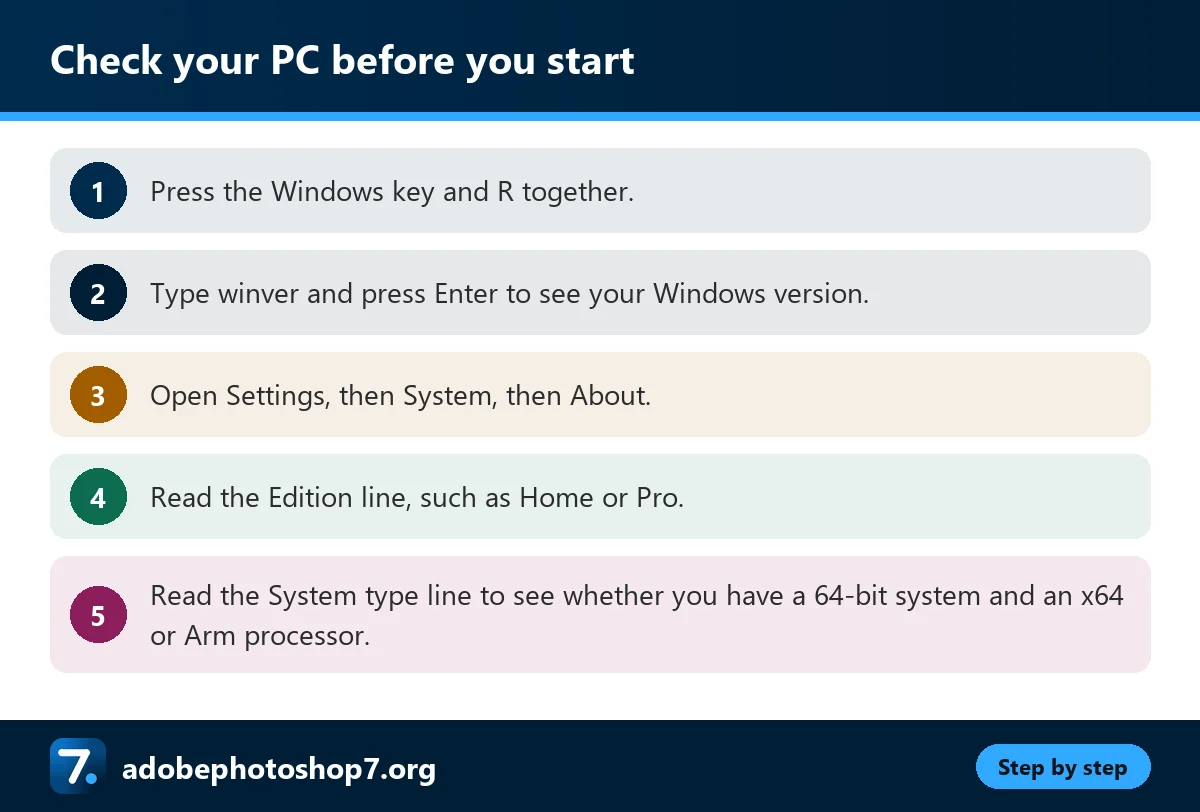
Check your PC before you start
Spend five minutes on these checks, because they tell you which fixes you will probably need. Note the answers on paper. They also help if you ask someone else for help.
Find your Windows edition and system type
- Press the Windows key and R together.
- Type winver and press Enter to see your Windows version.
- Open Settings, then System, then About.
- Read the Edition line, such as Home or Pro.
- Read the System type line to see whether you have a 64-bit system and an x64 or Arm processor.
The edition matters if you later want a virtual machine. The processor type matters because some newer thin laptops use Arm chips, which handle old programs by emulation.
Check the drives and free space
Open File Explorer and select This PC. Look at the total size of each drive, not only the free space. A drive of 1 TB or more is the most common reason for scratch disk trouble with this old program.
Also note whether you have a second drive or partition. A smaller one can be very useful later.
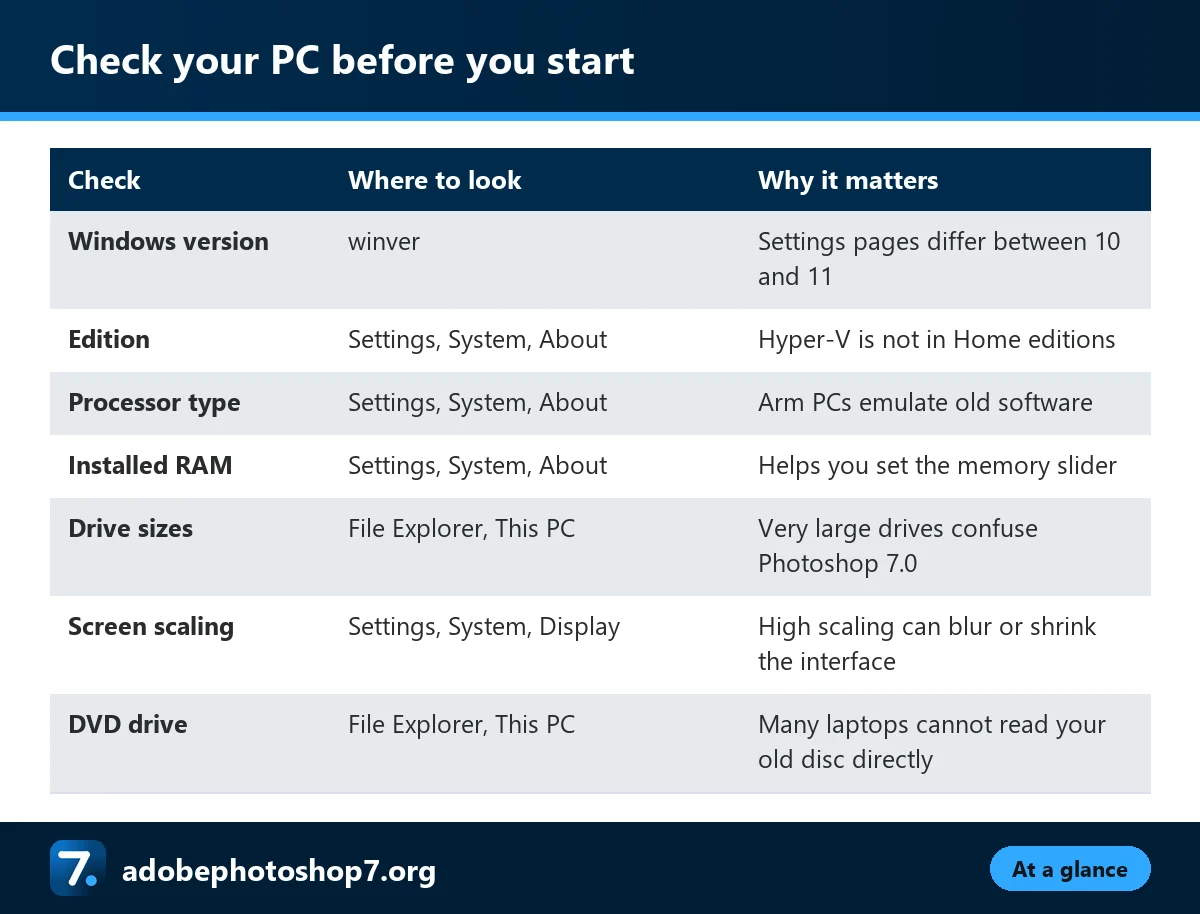
| Check | Where to look | Why it matters |
|---|---|---|
| Windows version | winver | Settings pages differ between 10 and 11 |
| Edition | Settings, System, About | Hyper-V is not in Home editions |
| Processor type | Settings, System, About | Arm PCs emulate old software |
| Installed RAM | Settings, System, About | Helps you set the memory slider |
| Drive sizes | File Explorer, This PC | Very large drives confuse Photoshop 7.0 |
| Screen scaling | Settings, System, Display | High scaling can blur or shrink the interface |
| DVD drive | File Explorer, This PC | Many laptops cannot read your old disc directly |
Is there a 64-bit version of Adobe Photoshop 7.0?
No, there is no 64-bit edition of Photoshop 7.0. It is a 32-bit program. A page or file that offers "Adobe Photoshop 7.0 for Windows 10 64 bit" as a special build is not offering a real Adobe product.
You do not need such a build. The genuine 32-bit program is what people run on 64-bit Windows.
How a 32-bit program runs on 64-bit Windows
64-bit Windows includes a layer called WOW64 that lets 32-bit applications run. This happens automatically. You do not switch anything on to use it on an ordinary home PC.
Because it is 32-bit, Photoshop 7.0 normally goes into the Program Files (x86) folder, not Program Files. That is expected and is not a fault.
The limits are elsewhere. A 32-bit program cannot load 64-bit plug-ins or 64-bit scanner drivers. Very old 16-bit programs do not run on 64-bit Windows at all, so a particularly old installer or add-on can fail for that reason.
What extra RAM does and does not do
A PC with 8 GB or 16 GB of RAM is far beyond the 128 MB that the program originally asked for. That does not mean Photoshop 7.0 can use it all. A 32-bit program can only address a few gigabytes at most, and this old one may misread very large amounts.
More RAM still helps Windows, your browser and other apps. It just will not turn an old editor into a modern one.
| Claim you may see | What is true |
|---|---|
| "Photoshop 7.0 64 bit for PC" | No official 64-bit edition exists |
| "Special Windows 11 version" | Adobe made no Windows 11 release of 7.0 |
| "Photoshop 7.0 32 bit only works on 32-bit Windows" | 32-bit programs generally run on 64-bit Windows |
| "16 GB RAM makes it much faster" | The program cannot use most of it |
Get your licence and files ready
You need a genuine copy and your own serial number before any Windows setting matters. Photoshop 7.0 is Adobe's proprietary software. It is not freeware, even though it is old and no longer on sale.
Your disc and serial number
Find your original disc or the installer you obtained lawfully, along with the serial number that came with your licence. If you cannot find the number, read the page on the Photoshop 7.0 serial number for lawful steps. We do not give out numbers of any kind.
If you have no copy at all, the download page explains what is and is not available. Files from random repack sites can carry malware. Names such as "get into pc" show up in searches; we do not endorse any such site.
Laptops without a DVD drive
Most recent laptops have no optical drive. If your licence came with a disc, you can use an external USB DVD drive. You can also copy the whole disc to a folder on the hard disk using a PC that has a drive, then run Setup from that folder. Copy every file and sub-folder, not only the Setup file.
Before you begin. Back up your photos before you install old software or change drive partitions. Then create a restore point: search the Start menu for Create a restore point, select your system drive, and choose Create. If protection is off for that drive, turn it on first with Configure.
A restore point helps to undo system changes. It is not a backup of your pictures.
How to install Adobe Photoshop 7.0 on Windows 10
Run the Setup file from your own genuine copy with administrator rights, and follow the wizard. The screens are explained one by one on our Photoshop 7.0 installation page, so here is only the Windows 10 part.
- Close other programs and save your work.
- Insert your disc, or open the folder that holds your copied installer.
- Right-click the Setup file and choose Run as administrator.
- Select Yes if User Account Control asks for permission.
- Follow the wizard and type your own details and serial number.
- Restart the PC when Setup finishes.
- Start Photoshop once before you change any other settings.
Test a plain start first. If the program opens and saves a file correctly, you may not need compatibility mode at all.
If Setup will not start
Right-click the Setup file, choose Properties, and open the Compatibility tab. Select a Windows XP option in compatibility mode, apply it, and try again. If Windows shows a message that the file cannot run on this PC, check that you are starting the correct file and that the copy from the disc is complete.
If your downloaded file triggers a security warning and you are not certain where it came from, stop. Do not turn off antivirus protection to force an unknown installer to run.
Finding the program folder. On 64-bit Windows the usual location is a folder such as C:\Program Files (x86)\Adobe\Photoshop 7.0. The main file is Photoshop.exe. You will need it for the settings below.
An easy way to find it is to search the Start menu for Photoshop, right-click the result and choose Open file location. If that opens a shortcut, right-click the shortcut and choose Open file location again.
Adobe Photoshop 7.0 on Windows 11
The same methods apply on Windows 11, because the compatibility options work much like those in Windows 10. The differences are mostly in menus and in the kind of laptop you bought. There is no separate release for Windows 11 Home or Windows 11 Pro.
Right-click the program file and look for Properties in the menu. If you only see a short menu, choose Show more options for the older, longer one. The Compatibility tab inside Properties looks familiar if you have used Windows 10.
You can also right-click a file and choose Run as administrator from the same menus.
Laptops that start in S mode
Some Home laptops are sold in S mode. S mode only allows apps from the Microsoft Store, so a Photoshop 7.0 setup file will not run. Microsoft lets you switch out of S mode, but the switch is one-way. Read Microsoft's own page about it before you decide, especially on a shared or office laptop.
Windows 11 on Arm laptops
Windows 11 on Arm can emulate 32-bit and 64-bit x86 applications, according to Microsoft. This may let an old program start. Microsoft also states that emulation does not support drivers, so an old scanner or hardware driver written for ordinary PCs will not load. We cannot say how Photoshop 7.0 behaves on any particular Arm laptop.
How to use compatibility mode for Photoshop 7.0
Compatibility mode tells Windows to behave a little like an older version when it starts one program. It can help with start-up faults, but it is not a cure for everything. It does not turn Windows into XP.
Set it from the Compatibility tab
- Close Photoshop completely.
- Right-click Photoshop.exe and choose Properties.
- Open the Compatibility tab.
- Tick Run this program in compatibility mode for.
- Choose a Windows XP entry from the list, such as the Service Pack 3 option.
- Select Apply, then OK.
- Start Photoshop and test opening, editing, saving and printing.
If you want the setting for every user account on the PC, use Change settings for all users at the bottom of the same tab before you tick the box. This needs administrator permission.
Choose a Windows version to try
Change one thing at a time. If you change four settings together, you will not know which one helped or harmed.
| Order | Setting to try | When it makes sense |
|---|---|---|
| 1 | No compatibility mode | Always test this first |
| 2 | Windows XP (Service Pack 3) | The program was written for the XP period |
| 3 | Windows XP (Service Pack 2), if listed | The first XP option did not help |
| 4 | Windows 7 | XP modes cause new graphics or file dialogue faults |
| 5 | Remove the tick again | Nothing improved |
The other boxes, such as reduced colour mode or 640 x 480 resolution, were made for very old games and utilities. A photo editor needs full colour, so leave them off.
Troubleshooter option. Microsoft offers a Program Compatibility Troubleshooter. On Windows 11, open Settings, System, Troubleshoot, then Other troubleshooters, and run it from the list. On Windows 10, open Settings, Update & Security, Troubleshoot, then Additional troubleshooters.
Windows updates sometimes rename or move these pages. If you cannot find the tool, the Compatibility tab does the same job by hand.
Run Photoshop 7.0 as administrator
Running as administrator gives the program permission to write to protected places that old software expected to use freely. XP-era programs often assumed full access. Modern Windows restricts it.
Try it once
Right-click the Photoshop shortcut and choose Run as administrator. Approve the prompt. If settings now save correctly, or an error disappears, permissions were part of the problem.
Make it permanent
- Right-click Photoshop.exe and choose Properties.
- Open the Compatibility tab.
- Tick Run this program as an administrator.
- Select Apply, then OK.
You will see a permission prompt at each start. On many PCs you also cannot drag a photo from a normal File Explorer window into a program running as administrator. Use File then Open instead. Mapped network drives may also be missing from the file dialogue.
On an office or cyber cafe PC, ask whoever manages it before changing this. Do not share the administrator password with every customer just to open one editor.
Fix the "scratch disks are full" error
This message often appears even when your drive has plenty of free space, because Photoshop 7.0 cannot handle the size of modern drives. The full text usually says that Photoshop could not initialise because the scratch disks are full.
A scratch disk is hard disk space that Photoshop uses as temporary working memory. It uses it for undo history, copies and large images.
Why a nearly empty drive can look full
An Adobe Community Expert has stated that Photoshop 7.0 cannot see a disk larger than 1 TB. Another community answer puts the safe limit at 512 GB. Adobe has not published a current fix, so treat these figures as user guidance. To be on the safe side, give the program a scratch volume below 512 GB.
The other causes are ordinary ones: a drive that really is full, a scratch disk set to a removed pen drive, or damaged preferences.
Open the scratch disk choice at start-up
- Close Photoshop.
- Start it again, and immediately hold Ctrl and Alt.
- Keep holding until the scratch disk dialogue appears.
- Choose a smaller drive or partition as the first scratch disk.
- Select OK and let the program finish loading.
The timing can be fussy. If the dialogue does not appear, close the program and try again. With an administrator prompt in the way, hold the keys just after you select Yes.
If the drive is truly crowded, move old videos and backups to another disk, empty the Recycle Bin and use the Windows storage settings to clear temporary files. Do not delete files inside Windows or Program Files by hand.
Give Photoshop 7.0 a smaller virtual disk
If all your drives are large, a virtual hard disk is a gentle way to create a small scratch volume without repartitioning. A virtual hard disk is a file that Windows treats as a separate drive. Community users have reported success with this on Windows 10, though not every PC behaves the same.
Create the virtual disk
- Right-click the Start button and choose Disk Management.
- Open the Action menu and choose Create VHD.
- Pick a location and a file name on a drive with enough free space.
- Enter a size, for example 20 GB, choose a fixed size, and select OK.
- Right-click the new disk's label and choose Initialize Disk.
- Right-click its unallocated space and choose New Simple Volume.
- Finish the wizard with NTFS formatting and a clear name such as SCRATCH.
- Start Photoshop with Ctrl and Alt held, and select the new drive letter.
Read each screen carefully. Formatting the wrong disk destroys its files. Only format the new, empty disk that you have just created.
Keep it attached after a restart
A virtual disk may not come back by itself after you restart. If the scratch error returns, open Disk Management, choose Action, then Attach VHD, and select your file. Never store customer photos on this volume. It is only a workspace.
Use a real partition instead
You can also shrink an existing volume in Disk Management with Shrink Volume and create a small new partition from the freed space. This survives restarts more simply. It also carries more risk, so back up first. If you are unsure, ask an experienced technician.
| Method | Good point | Weak point |
|---|---|---|
| Existing small drive | Nothing to create | Not every PC has one |
| Virtual hard disk | No change to existing partitions | May need attaching again |
| New partition | Stays after restart | Partition changes can lose data if done wrongly |
| USB drive | Quick test | Slow, and the error returns if removed |
Set scratch disks and memory in preferences
Once Photoshop opens, set both options inside the program so that you do not rely on the start-up keys each time. The menu names below are those of version 7.0, not of recent Creative Cloud releases.
Plug-Ins and Scratch Disks
Open Edit, then Preferences, then Plug-Ins & Scratch Disks. You can name up to four scratch disks in order. Put your small, fast volume first. Add a second one if you have it.
Select OK, close Photoshop and open it again. The change applies after a restart of the program.
Memory and Image Cache
Open Edit, then Preferences, then Memory & Image Cache. Here you set the percentage of available RAM that the program may use. On a PC with a lot of memory, do not push the slider to 100%.
Start near the middle, around 50%. Restart Photoshop and test with a typical photo. If you see "not enough memory" errors, lower the figure further and not higher. With very large amounts of RAM, some users find that a smaller percentage behaves better.
Make sure the status bar is visible, using the Window menu. Its pop-up arrow offers Scratch Sizes and Efficiency. An efficiency figure that stays well below 100% means the program is leaning on the disk. Close other images or reduce history states.
Fix tiny or blurry menus on high-DPI screens
Photoshop 7.0 was designed for screens with far fewer pixels, so menus and tool icons can look very small or soft on a modern laptop. Windows gives you two kinds of control: overall scaling and a per-program override.
Use the per-program override
- Close Photoshop.
- Open Properties for Photoshop.exe and go to the Compatibility tab.
- Select Change high DPI settings.
- Tick Override high DPI scaling behaviour.
- In Scaling performed by, try System first.
- Select OK twice and start Photoshop.
Then test the other choices, Application and System (Enhanced), one at a time. Application usually keeps things sharp but small. System makes them larger but softer.
Scaling by Windows can also enlarge the image on screen. That can make a sharp photo look soft at 100% zoom. Judge sharpness by a test print or by viewing the saved file in another viewer.
You can lower the Windows scale or screen resolution while you work, or use an external monitor with a lower resolution. Brush outlines and pointers may still look small. Pressing Caps Lock switches painting tools to a precise cross-hair, so check that key if your brush outline seems to have vanished.
Adobe Photoshop 7.0 on Windows 7 PCs
Photoshop 7.0 is also unsupported on Windows 7, although many older studios still run that pairing. Windows 7 came out years after the program. Expect the same kinds of adjustment as on Windows 10, usually with fewer screen scaling problems.
Open and test it on Windows 7
Look under Start, then All Programs, for the Photoshop entry. If you cannot see it, type Photoshop into the Start menu search box. Right-click the result to pin it to the taskbar for quicker access.
After it opens, create a new blank document, paint a mark, save it as a PSD, close it and open it again. This short test shows that the program can read, write and keep its settings.
Settings to try on Windows 7
The Properties window has a Compatibility tab here as well. XP Service Pack 3 and "Run this program as an administrator" are the two usual experiments. If the screen colours or window borders flicker, you can also try the option that disables desktop composition, then remove it if nothing changes.
Scratch disk trouble depends on drive size, not only on Windows version. A Windows 7 PC with a large replacement drive can show the same message as a new Windows 11 machine.
Support status. Microsoft ended support for Windows 7 on 14 January 2020. A Windows 7 PC that goes online no longer receives normal security updates. If you keep one for old software, limit what it does: no banking, no email attachments, and as little web browsing as possible.
Photoshop 7.0 on a laptop
A laptop can run the program if its Windows setup can, but the small screen and touchpad change how comfortable the work is. "Adobe Photoshop 7.0 for laptop" is not a different edition. It is the same Windows software.
Screen and palettes
Version 7.0 shows several floating palettes. On a small screen they crowd the picture. Press Tab to hide the toolbox and palettes, and press it again to bring them back. Shift with Tab hides the palettes but keeps the toolbox.
If a palette disappears off the screen after you unplug an external monitor, use Window, then Workspace, then Reset Palette Locations.
Mouse, touchpad and touch screen
Selection and retouching work are much easier with a mouse than with a touchpad. A touch screen may act only as a simple pointer, and gestures such as pinch to zoom may do nothing useful. The program predates them.
Plug in the charger for long editing sessions, because power saving can slow the processor. Many budget laptops have small internal storage. Keep some free space for scratch files, and do not fill the system drive with customer folders.
Scanners, printers and pen tablets
Photoshop talks to hardware through Windows drivers, so check the device maker's support for your version of Windows first. An old editor cannot make an unsupported scanner work.
Scanning with TWAIN or WIA
Version 7.0 has import options under File, then Import. Depending on your setup, you may see TWAIN or WIA entries there. Because the program is 32-bit, a TWAIN connection needs a 32-bit scanner driver, even on 64-bit Windows. Many current scanner packages include one, but not all do.
If your scanner does not appear, scan with the maker's own utility or the Windows scanning app. Save a TIFF or high-quality JPG, then open it in Photoshop. This route is simple and avoids driver fights.
Printing
Install the current printer driver from the maker. Print a test image with a known size, such as a 4 x 6 inch layout, and measure it. Check File, then Print with Preview, for position and scale. Colour on paper can differ from the screen, especially when both the driver and Photoshop try to manage colour.
Pen tablets
A tablet needs its own Windows driver. If the pen moves the pointer but pressure does nothing, the old program may not be receiving pressure data from the new driver. Look for compatibility notes from the tablet maker. Some drivers offer a switch for Windows Ink; changing it can alter how older software reads the pen.
Strange redraws, black areas or lagging brush outlines can come from the graphics driver. Update it through Windows Update or the PC maker. If the fault began right after a driver update, use Device Manager to check whether rolling back is available.
Files, fonts and plug-ins on a new PC
Old software meets new files on a modern computer, and this causes more daily trouble than installation itself. Check formats before you promise a job to someone.
Phone photos and newer formats
Many phones save HEIC images, and many websites serve WebP. Photoshop 7.0 is older than both formats and does not open them on its own. Set the phone camera to save JPG where possible, or convert the file first with a trusted viewer.
| File type | In Photoshop 7.0 | What to do |
|---|---|---|
| PSD from version 7.0 | Opens normally | Keep as your editable master |
| PSD from a newer version | May open with changes or lost features | Ask the sender for a flattened TIFF or JPG |
| JPG | Opens; a very unusual variant may fail | Re-save from another viewer if needed |
| HEIC | Not supported | Convert to JPG first |
| WebP | Not supported | Convert to JPG or PNG first |
| Camera RAW from a new camera | Not supported for new models | Convert with the camera maker's software |
Large photographs
A modern phone or camera picture can contain tens of millions of pixels. Each layer you add increases the memory and scratch space needed. If you only need a small print, make a copy and reduce it with Image, then Image Size, before heavy editing. Keep the original untouched.
Fonts that do not appear
Windows 10 and 11 can install a font for just one user. Older programs may not see such fonts. Right-click the font file and choose Install for all users, then restart Photoshop. If the program became slow or unstable after you added hundreds of fonts, remove the ones you do not use.
Only 32-bit plug-ins can load, and even then some old ones have their own installers that fail today. Add them one at a time and keep a note of what you added. Typing in Indian scripts has separate limits in this version, because complex letter shapes may not join correctly. Test a few words before you design a full poster.
Start-up errors and crashes on Windows
Most start-up faults come from a short list of causes: permissions, scratch disks, memory settings, preferences, plug-ins, fonts or drivers. Work from the easiest to the hardest. Our Photoshop 7.0 problems page covers faults that are not specific to Windows versions.
| What you see | Likely area | First thing to try |
|---|---|---|
| Setup does nothing | Permissions or compatibility | Run Setup as administrator |
| "Scratch disks are full" | Drive size or space | Ctrl and Alt at start, choose a small volume |
| "Not enough memory (RAM)" | Memory setting | Lower the percentage in preferences |
| Closes while loading plug-ins | A plug-in | Move recently added plug-ins out of the folder |
| Closes while building font lists | A damaged font | Remove recently installed fonts |
| Settings reset every time | Write permission | Run once as administrator |
| Crash in the Open or Save dialogue | Preview extensions or network paths | Work from a local folder |
Reset the preferences
Damaged preferences can cause odd behaviour that no Windows setting fixes. Start Photoshop and at once hold Ctrl, Alt and Shift. When the program asks whether to delete the settings file, choose Yes. Your own options return to their defaults, so set scratch disks and memory again afterwards.
Isolate a plug-in
Open the Plug-Ins folder inside the Photoshop folder. Move only the files you added yourself into a temporary folder on the desktop. Start the program. If it now opens, return them in small groups until the faulty one shows itself. Leave the original Adobe files where they are.
When the program closes without a message, search the Start menu for Reliability Monitor or View reliability history. Select the day of the crash and look at the entry for Photoshop.exe. The name of a faulting module can point to a plug-in or driver. If it means nothing to you, copy it into your notes for a technician.
Slow, freezing or hanging while editing
Slowness usually means the program is working from disk, or an image is much larger than the job needs. Faster hardware helps less than you might expect with such old software.
Reduce what it keeps in memory
Use Edit, then Purge, to clear undo, clipboard or history data. Purging cannot be reversed, so save first. You can also lower History States under Edit, then Preferences, then General.
Check what else is running
Open Task Manager with Ctrl, Shift and Esc. A browser with many tabs, a cloud sync tool or an antivirus scan can compete for disk and memory. Close what you do not need. Do not switch off your antivirus protection to gain speed.
Make a small new document and paint on it. If that is smooth, the problem lies with the large file, its layers or its location. Copy files from a pen drive or network share to the local disk before you edit them, and copy them back when you finish.
Use a virtual machine for an older Windows
A virtual machine runs a second, older Windows inside a window on your current PC, which can give Photoshop 7.0 a more familiar home. It is the most involved option on this page, and it still comes with no promise.
What you need
- A PC with enough spare RAM, processor power and disk space for two systems.
- Virtualisation support, which may need to be turned on in the BIOS or UEFI settings.
- Virtual machine software from its official publisher.
- A genuine licence and installation media for the older Windows you put inside it.
- Your genuine Photoshop 7.0 licence.
A virtual machine does not give you a free copy of Windows. The guest system needs its own valid licence.
Hyper-V or another program
Microsoft's Hyper-V is available in Pro, Enterprise and Education editions, not in Home. Other virtualisation programs, such as Oracle VirtualBox, exist for Home users; read their licence terms, particularly for business use. We are not affiliated with any of them.
| Route | Suits | Limits |
|---|---|---|
| Direct install on Windows 10 or 11 | Most home users who own a licence | Compatibility faults are possible |
| Hyper-V guest | Pro edition users comfortable with settings | Not in Home; USB devices can be awkward |
| Third-party virtual machine | Home edition users | Extra software to learn and update |
| Separate old PC kept offline | A studio with a fixed workflow | Old hardware can fail without warning |
Set it up in outline
- Install the virtual machine software from its official site.
- Create a new machine and give it a modest amount of memory and disk.
- Keep the virtual disk below 512 GB to avoid the large-drive problem.
- Install your licensed older Windows inside it.
- Install Photoshop 7.0 from your own genuine copy.
- Set up one shared folder for moving photos in and out.
- Switch off the guest's network connection if it does not need the internet.
- Save a snapshot or backup of the working machine.
Windows XP support ended in April 2014, and Windows 7 support ended in 2020. Neither should be used as an everyday internet system. Printers, scanners and tablets may not pass through to the guest correctly, and graphics speed can be modest. If your work depends on a particular device, test it before you move any customer jobs.
Windows updates and your old software
A system that works today can behave differently after a large Windows update, so keep notes and backups. Do not stop security updates just to protect an old program.
Windows 10 support dates
Microsoft states that Windows 10 reached end of support on 14 October 2025. Its consumer Extended Security Updates programme is listed as ending on 12 October 2027, as checked in November 2026. Check Microsoft's page for current terms before you plan around those dates.
After a major update
- Start Photoshop and open a test file.
- Check that the Compatibility tab still has your choices.
- Confirm the scratch disk, and attach your virtual disk again if needed.
- Print one test page.
- Scan one test image if you scan for work.
Doing this on a quiet day is far better than finding a fault with a customer waiting at the counter.
Moving to a new PC. Do not copy the Program Files folder from the old computer. Install again from your own media, then bring across your photos, PSD files, custom actions, brushes and fonts that you are licensed to use. Save actions and brush sets to files from inside the program before you retire the old PC. Read your licence terms about moving the software to another machine.
Free download offers for Windows 10 and 11
There is no lawful free download of Photoshop 7.0 from Adobe, whatever a search result says. Phrases such as "Adobe Photoshop 7.0 free Windows 10", "for PC free" or "online free" lead to many unofficial pages. We do not provide the program, serial numbers or modified builds.
Why repacked installers are risky
An unknown installer asks for exactly the permissions that malware wants: to run as administrator and write to system folders. A repack that tells you to disable antivirus protection is a clear warning. A cyber cafe or photo studio PC may hold customer ID scans and photos, so the harm can reach other people.
Lawful routes
If you already own a licence, use your own copy. If you do not, consider a current licensed Adobe product, or a free editor such as GIMP or Paint.NET from its official site. Browser editors also exist. Our page on online and free options compares these routes. For other systems, see Photoshop 7.0 on Mac and Android.
Photoshop 7.0 is a desktop program. It has no official online version. A website that claims to run it in your browser may be a different editor wearing a familiar name, or something less honest. Be careful about uploading ID photos and family pictures to sites you do not know.
After it runs: common editing jobs
Once the program is stable, learn the tools for your actual work and keep original files safe. Searches such as "CB edit in Adobe Photoshop 7.0 for PC" are about creative background editing, which depends on selections, layers and colour adjustments, not on your Windows version.
Background and portrait work
The steps for cutting out a person are on our page about removing a background in Photoshop 7.0. For colour, tone and retouching, see photo editing in Photoshop 7.0.
If you only need to crop a passport or stamp photo, you do not have to install anything. Our passport size photo page has a maker that works in the browser on a JPG, PNG or WebP file. It sizes and crops the photo and creates a print sheet. It does not change backgrounds or run Photoshop, and it does not check official acceptance.
Tips for running Photoshop 7.0 on a new PC
Small habits prevent most repeat faults. Use these ten after you have a working setup.
- Change one setting at a time. Test after each change and write down the result.
- Keep the scratch volume small and local. A volume below 512 GB on an internal drive is a cautious choice.
- Never use a pen drive as your only scratch disk. Removing it brings the error back.
- Save often. Press Ctrl and S after every important step.
- Keep a PSD master. Export JPG copies from it instead of saving over the original.
- Work from a local folder. Copy files from cameras, phones and networks first.
- Convert modern formats early. Turn HEIC and WebP into JPG or PNG before the job starts.
- Add plug-ins and fonts slowly. You can then trace a new crash to its cause.
- Back up to a second device. A restore point does not protect your pictures.
- Have a spare editor ready. A deadline is a bad time to troubleshoot old software.
Checklist for studios and cyber cafes
A shared business PC needs a written setup, because several people will use it and faults cost money. Keep one sheet near the computer or in a shared note.
| Item to record | Example of what to note |
|---|---|
| Windows version and edition | The result of winver and the About page |
| Compatibility settings | Mode chosen, administrator tick, DPI choice |
| Scratch disk | Drive letter and how to attach it again |
| Memory percentage | The figure that proved stable |
| Printer and scanner | Driver source and a test method |
| Licence | Where the proof of purchase is kept, not the number on a wall |
| Backup | Which drive, how often, who checks it |
Give staff a simple rule for failures: note the exact message, do not delete folders, and do not download a "fix" from a search result. Count your licences honestly. One licence does not cover every computer in the shop.
Protect customer files as well. Delete ID documents and photos when the job and any agreed storage period end, and do not leave them in a shared scratch or downloads folder.
When to stop troubleshooting
Stop when you have tried each fix once and the same fault remains, or when a fix would put your data at risk. More changes to an unsupported setup often add new problems.
Signs that it is time
- The program crashes on ordinary saves even after a preference reset.
- It only runs if you weaken security settings.
- You would need to repartition a drive that has no backup.
- Your scanner or printer has no working driver for it.
- The time spent fixing exceeds the time spent editing.
Undoing your experiments. Remove the ticks on the Compatibility tab, detach any virtual disk you no longer need, and uninstall through the Windows apps list. Keep your PSD files. Another editor may open them, though text, effects and some layer features can look different, so also export TIFF or JPG copies of finished designs.
Asking for help. State your Windows version, the exact error words, when it happens and what you already tried. Remove serial numbers, names and customer pictures from any screenshot before you share it.
Frequently asked questions
Can I use Adobe Photoshop 7.0 in Windows 10?
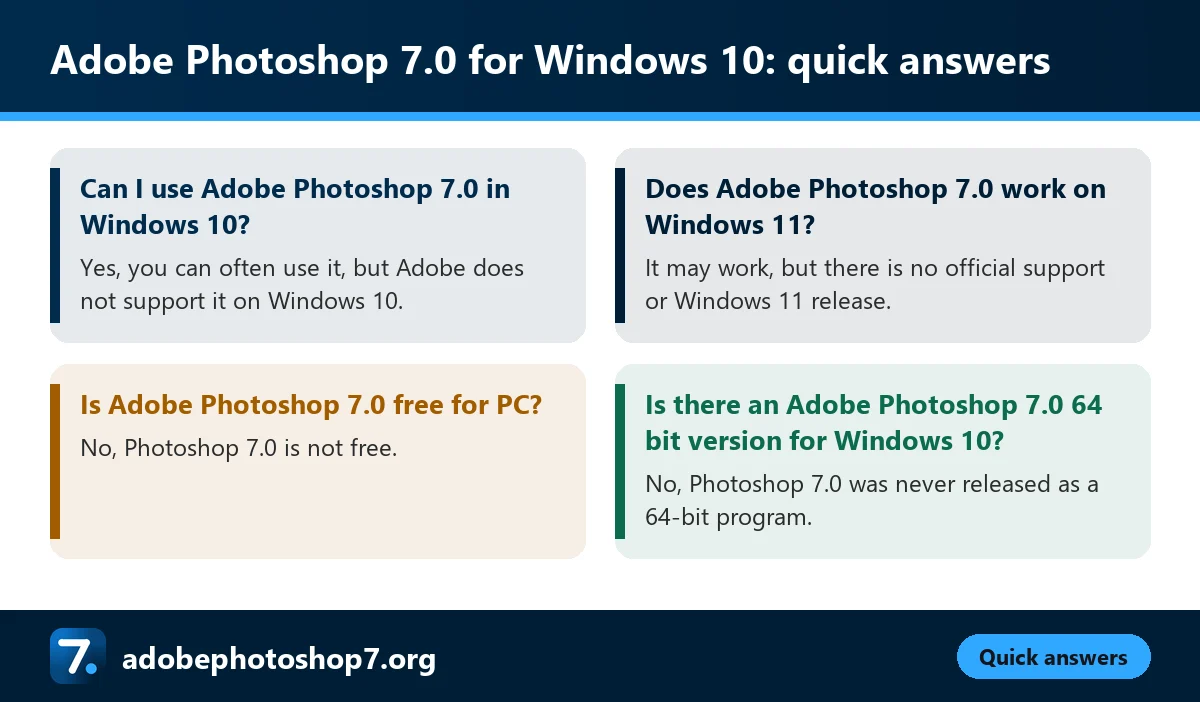
Yes, you can often use it, but Adobe does not support it on Windows 10. Install from your own genuine copy, test it without changes first, and then try compatibility mode or administrator rights if needed. Large drives may cause a scratch disk error. No guide can guarantee that it will work on every PC, so test your real jobs before relying on it.
Does Adobe Photoshop 7.0 work on Windows 11?
It may work, but there is no official support or Windows 11 release. Users apply the same methods as on Windows 10: compatibility mode, administrator rights, scratch disk changes and DPI override. Laptops in S mode block the installer, and Arm laptops rely on emulation. Keep another editor ready in case a Windows update changes how the old program behaves.
Is Adobe Photoshop 7.0 free for PC?
No, Photoshop 7.0 is not free. It is proprietary Adobe software, and its age does not change the licence. Adobe no longer offers it for sale or download. You need your own genuine licence to install it. If you do not have one, use a free editor from its official publisher or a current licensed product instead of a copy from an unknown site.
Is there an Adobe Photoshop 7.0 64 bit version for Windows 10?
No, Photoshop 7.0 was never released as a 64-bit program. The 32-bit original can run on 64-bit Windows through a built-in compatibility layer, although Adobe does not support that combination. Treat any "64 bit" download of version 7.0 as unofficial and unsafe. If you really need 64-bit performance, you need a much newer editor.
How can I open Adobe Photoshop 7.0 in Windows 7?
Open it from the Start menu, under All Programs, or from its desktop shortcut. If it does not start, right-click the shortcut and choose Run as administrator. Then try Windows XP compatibility mode from Properties. If a scratch disk message appears, hold Ctrl and Alt while starting and pick a smaller drive. Check also that the installation finished without errors.
Why does Photoshop 7.0 say the scratch disks are full when my drive is empty?
The usual reason is drive size, not a lack of space. Community experts report that version 7.0 cannot read very large drives correctly. Point the scratch disk to a smaller drive, partition or virtual hard disk. You can choose it by holding Ctrl and Alt while the program starts, then confirm it under Preferences, Plug-Ins & Scratch Disks.
Do I need an Adobe Photoshop 7.0 driver for Windows 10?
No, Photoshop is an application and does not need a driver of its own. Drivers belong to hardware such as printers, scanners, tablets and graphics chips. Get those from the device maker's official support site. A download that calls itself a "Photoshop 7.0 driver" is suspicious. For scanning, the scanner driver may need to include a 32-bit TWAIN component.
Which compatibility mode is best to try for Photoshop 7.0?
Start with no compatibility mode, then try a Windows XP option if something fails. XP is the closest match to the period when the program was made. Change one setting at a time and test after each change. If XP mode causes new problems, try Windows 7 or remove the tick. Different PCs and drivers can give different results.
Can I install Photoshop 7.0 on Windows 11 Pro?
You can try, using your own genuine copy. Windows 11 Pro gets the same unsupported status as the Home edition for this program, and there is no special Pro release. One practical difference is that Pro includes Hyper-V, so you can build a virtual machine with a licensed older Windows if direct installation fails. Test saving, printing and scanning before you rely on it.
Is Photoshop 7.0 32 bit or 64 bit?
Photoshop 7.0 is a 32-bit application. On 64-bit Windows it usually installs in the Program Files (x86) folder and runs through the WOW64 layer. It cannot load 64-bit plug-ins or 64-bit TWAIN drivers. There is no official 64-bit installer for version 7.0, so downloads that claim to be one should not be trusted.
Why are the menus so small in Photoshop 7.0 on my laptop?
Your screen has many more pixels than the program expected. Open the Properties of Photoshop.exe, go to the Compatibility tab, choose Change high DPI settings, and override scaling with the System option. Text may become larger but softer. You can also lower the screen resolution while editing, or connect an external monitor that is easier to read.
How much RAM should I give Photoshop 7.0?
Start with about half of the available memory in Edit, Preferences, Memory & Image Cache, then restart the program. This is a cautious starting point, not an Adobe rule for modern PCs. If you see memory errors, reduce the percentage. If large files feel slow and nothing fails, you can raise it slightly and test again.
Does compatibility mode damage Windows?
No, compatibility mode only changes how Windows treats the selected program. You can remove it by clearing the tick on the Compatibility tab. Administrator rights need more care, because they let the program, and anything inside its installer or plug-ins, make wider changes. Use them only with software whose origin you know and trust.
Can I run Photoshop 7.0 from a pen drive on Windows 10?
No, a genuine installation is meant to be installed on the computer with Setup. Copies advertised as "portable" are unofficial modified builds, and we do not point to them. They can carry malware and break licence terms. You may keep your project files on a pen drive, but copy them to the local disk before editing for speed and safety.
Why can I not drag photos into Photoshop 7.0?
Windows often blocks drag and drop from a normal window into a program running as administrator. Untick the administrator option if you do not need it, or open pictures through File, then Open. If the program is not elevated and dragging still fails, check the file format, because HEIC and WebP files will not open in this version.
Will Photoshop 7.0 keep working after Windows updates?
Nobody can say for certain, because Adobe does not test it and Microsoft does not promise every old program will run. After a large update, check your compatibility settings, scratch disk, printing and scanning. Keep your installation media and licence details safe, and keep a second editor available so that a change in Windows does not stop your work.
Our recommendation for Windows 10 and 11 users
Use Photoshop 7.0 on a modern PC only if you already hold a genuine licence and can accept that it may stop working. Try the plain installation first, then compatibility mode, administrator rights, a small scratch volume and the DPI override, one at a time.
If you already own a licence
Give the direct installation an afternoon of testing with your real files, printer and scanner. If it passes, record the settings. If only some jobs fail, split the work: scan or convert in another app and edit in Photoshop.
If you are starting fresh
Do not hunt for a 20-year-old program. A current editor, paid or free, will handle new photo formats and high-resolution screens with far less effort. Learning basic layers and selections there will still help you if you later use an old version at work.
For business users. Do not rest your income on an unsupported setup. Keep a second editor installed, keep copies of finished work in common formats, and plan a move to supported software while the old one still runs.