There is no official Adobe Photoshop 7.0 online. It is desktop software released in 2002, it is not freeware, and Adobe does not offer it today. For browser work, use Photoshop on the web (plan or trial needed for your own photos), Photopea or Pixlr. For free desktop work, use GIMP or Krita.
Is there an Adobe Photoshop 7.0 online version?
No, Adobe has never published a browser edition of Photoshop 7.0. The programme was built to be installed on Windows or Macintosh computers of its time. It saved files to your own disk and had no web login.
So a page that promises "online Adobe Photoshop 7.0" is offering something else. It may be a different editor with a similar layout. It may be a download page dressed up as a web tool. It may also be a remote desktop service running a copy whose licence you cannot check.
Why a 2002 programme does not run inside a browser
Photoshop 7.0 is a native application. It talks directly to the operating system for memory, files, fonts, printers and scanners. A browser does not run such a programme just because someone puts it on a website.
Making a real web version means rebuilding the software for the browser. Only the owner of the code can do that lawfully. Adobe did build Photoshop for the web, but it belongs to the current product line and looks and behaves differently from 7.0.
What "online" search results usually turn out to be
Most results fall into a few groups. Knowing them saves time and protects your computer.
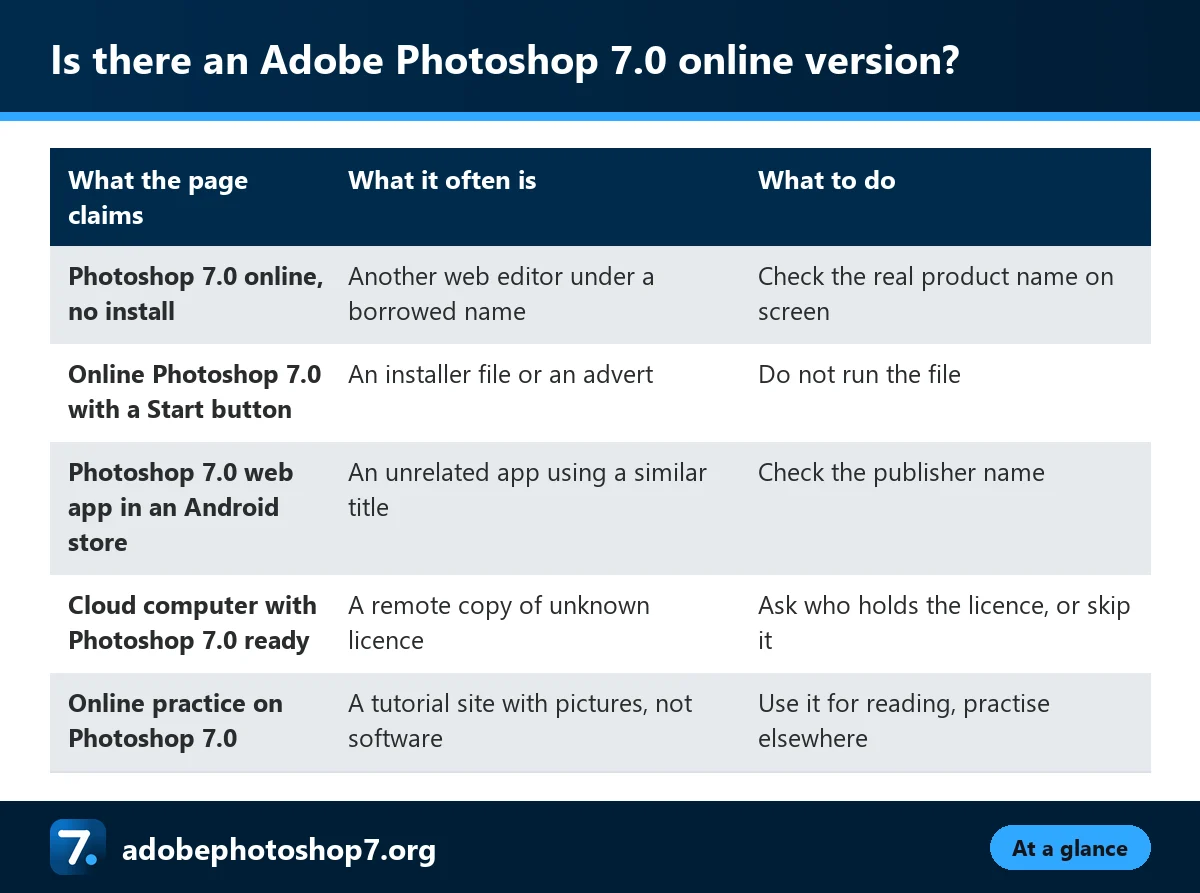
| What the page claims | What it often is | What to do |
|---|---|---|
| Photoshop 7.0 online, no install | Another web editor under a borrowed name | Check the real product name on screen |
| Online Photoshop 7.0 with a Start button | An installer file or an advert | Do not run the file |
| Photoshop 7.0 web app in an Android store | An unrelated app using a similar title | Check the publisher name |
| Cloud computer with Photoshop 7.0 ready | A remote copy of unknown licence | Ask who holds the licence, or skip it |
| Online practice on Photoshop 7.0 | A tutorial site with pictures, not software | Use it for reading, practise elsewhere |
Is Adobe Photoshop 7.0 free or paid?
Photoshop 7.0 is paid, proprietary software. It was sold under a licence, with a serial number needed at installation. Its age has not changed that.
The words "Adobe Photoshop 7.0 is free" appear on many download pages. They describe what those pages hand out, not what Adobe permits. Installing it needs your own genuine licence. This site does not provide copies, serial numbers or cracks.
Not sold any more is different from free
A company can stop selling a product and still own all rights in it. Copyright does not end when the boxes leave the shops. "Abandonware" is an informal internet word, not a licence you can rely on.
If you already hold a genuine boxed or invoiced copy, that is a separate matter. Read our guide on Photoshop 7.0 download options to see what a licence holder can and cannot do.
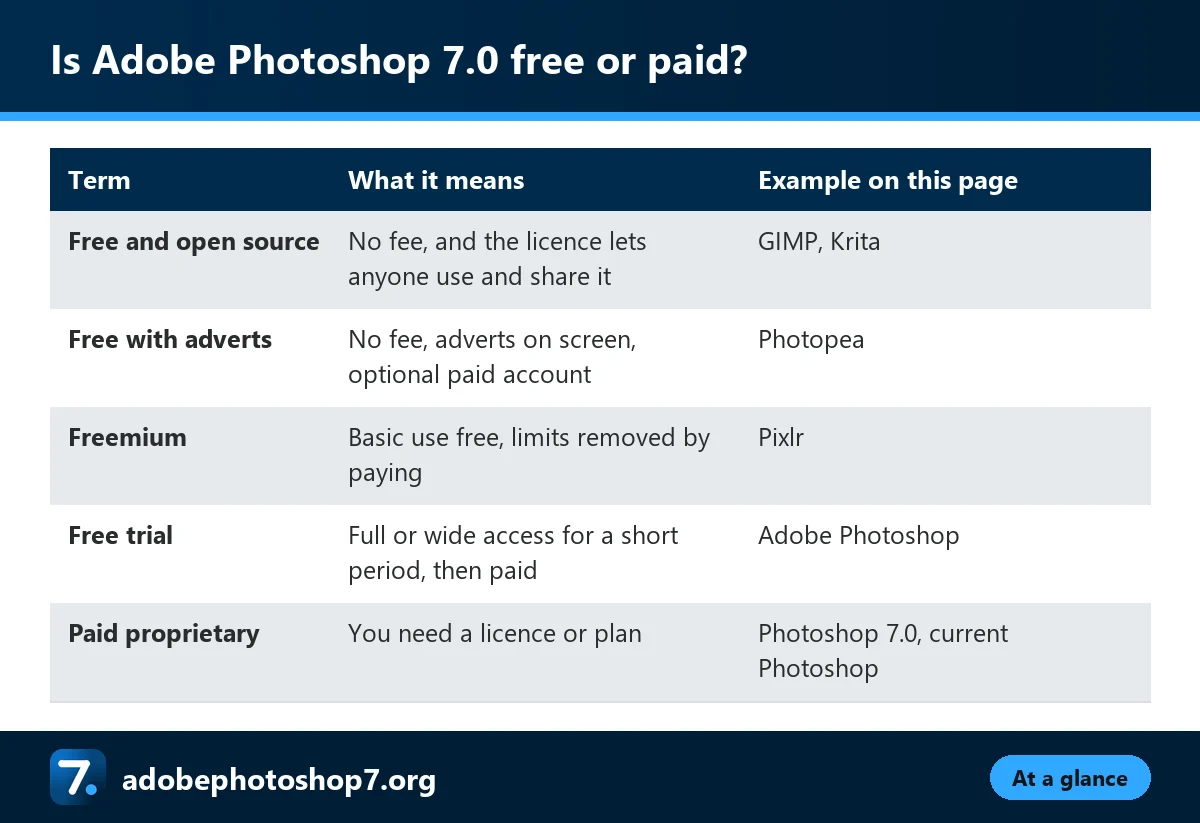
Free, freemium, trial and paid compared
These four words are often mixed up. The table shows what each one means for the tools on this page.
| Term | What it means | Example on this page |
|---|---|---|
| Free and open source | No fee, and the licence lets anyone use and share it | GIMP, Krita |
| Free with adverts | No fee, adverts on screen, optional paid account | Photopea |
| Freemium | Basic use free, limits removed by paying | Pixlr |
| Free trial | Full or wide access for a short period, then paid | Adobe Photoshop |
| Paid proprietary | You need a licence or plan | Photoshop 7.0, current Photoshop |
Adobe Photoshop 7.0 online open: the program or a file?
The phrase can mean two different things, and each has its own answer. You may want to open the Photoshop 7.0 program in a browser. That is not possible through any official service. Or you may have a file made in 7.0 and want to open it online, which is often possible.
Look at the end of the file name to know what you hold. A PSD file is a layered working document. A JPG, PNG or BMP file is usually a flat picture that almost any editor, and even a basic photo viewer, can show. A file ending in exe, msi or apk is a program or app package, not a picture. Do not open such a file because a website says it is Photoshop online.
Windows may hide file name endings. Turn on the option to show them before you sort files from an old pen drive or CD. It helps you tell a real design file from a program with a misleading picture-like name.
If someone else sent the PSD, ask what they need back. They may want only a proof image, which is a small job. They may want an edited layered file, which needs more care with fonts and effects. Agree on this before you start, so that you pick a tool that can deliver it.
Keep one rule for every route: open a copy. If the online editor misreads the file, or you save over it by mistake, the original design is still safe on your disk.
Which option fits your job? A short comparison
Choose by the job and the computer, not by the version number you remember. The table below gives a starting point, and later sections explain each row.
| Your need | Good starting point | Main catch |
|---|---|---|
| Open a PSD quickly on any PC | Photopea | Adverts, and a large file needs a strong PC |
| Learn current Photoshop skills | Adobe trial | Short period, payment details asked |
| Free desktop editor for daily work | GIMP | Menus differ from Photoshop |
| Drawing and digital painting | Krita | Not designed mainly for photo retouching |
| Fast filters and social posts | Pixlr | Free plan has limits |
| Passport or stamp photo print sheet | Our passport photo maker | No background change or retouching |
Browser editor or installed editor?
A browser editor needs no installation and works on borrowed or locked computers. It depends on the website staying available, and its design can change without warning.
An installed editor takes disk space and some setup. In return, it works without internet and keeps your files on your own machine. For daily studio work, many people find the installed route steadier.
Answer these questions before you choose, because they remove most of the confusion:
- Do you need layers, or only crop and brightness?
- Will you receive PSD files from other people?
- Is the output for screen, photo print or press print?
- Is the computer yours, or shared with others?
- How reliable is your internet connection during working hours?
Photoshop on the web: Adobe's own online editor
Photoshop on the web is Adobe's browser version of the current Photoshop, not of 7.0. Adobe's India product page says there is no fully free version of it. You can try some popular tools through guided tutorials without an account. To upload and edit your own photos, you need an Adobe account and a plan or free trial.
What Adobe says it can do
Adobe's page lists these features for the web editor:
- Layers and adjustment layers, including hue and saturation controls
- Background removal and subject selection
- A spot healing tool for small marks
- Text tools with a large font library
- AI features such as Generative Fill and Generative Expand
- Cloud documents that you can share and comment on
- JPEG, PNG and PSD files
Photoshop 7.0 users will recognise layers, healing and type. Background removal by one click and generative features did not exist in 2002.
Limits to check before you rely on it
Adobe's page states a file size limit of 40 MB and an image limit of 8,000 x 8,000 pixels. It also says the editor needs an active internet connection. A layered album page or a large flex banner can cross those limits.
Limits and plan names change. Read the current Photoshop on the web page before you promise a customer anything. Adobe publishes its own list of supported browsers and computer requirements too, so check it for an old office PC.
Students in India
Adobe announced in February 2026 that students can get Photoshop, Acrobat and Firefly free through accredited higher education institutions in India. This is not an open offer to everyone. Ask your college whether it takes part, and read the terms of your own account.
Adobe Photoshop 7.0 free trial: what is possible now
You cannot get a Photoshop 7.0 trial from Adobe today. The official trial is for the current Photoshop. Pages offering an "Adobe Photoshop 7.0 trial version" are not Adobe download pages, so treat their files as unsafe.
Adobe's India trial page offers seven days, one trial per person. It converts to a paid membership unless you cancel before the period ends. The trial starts at checkout.
How to start the current Photoshop trial
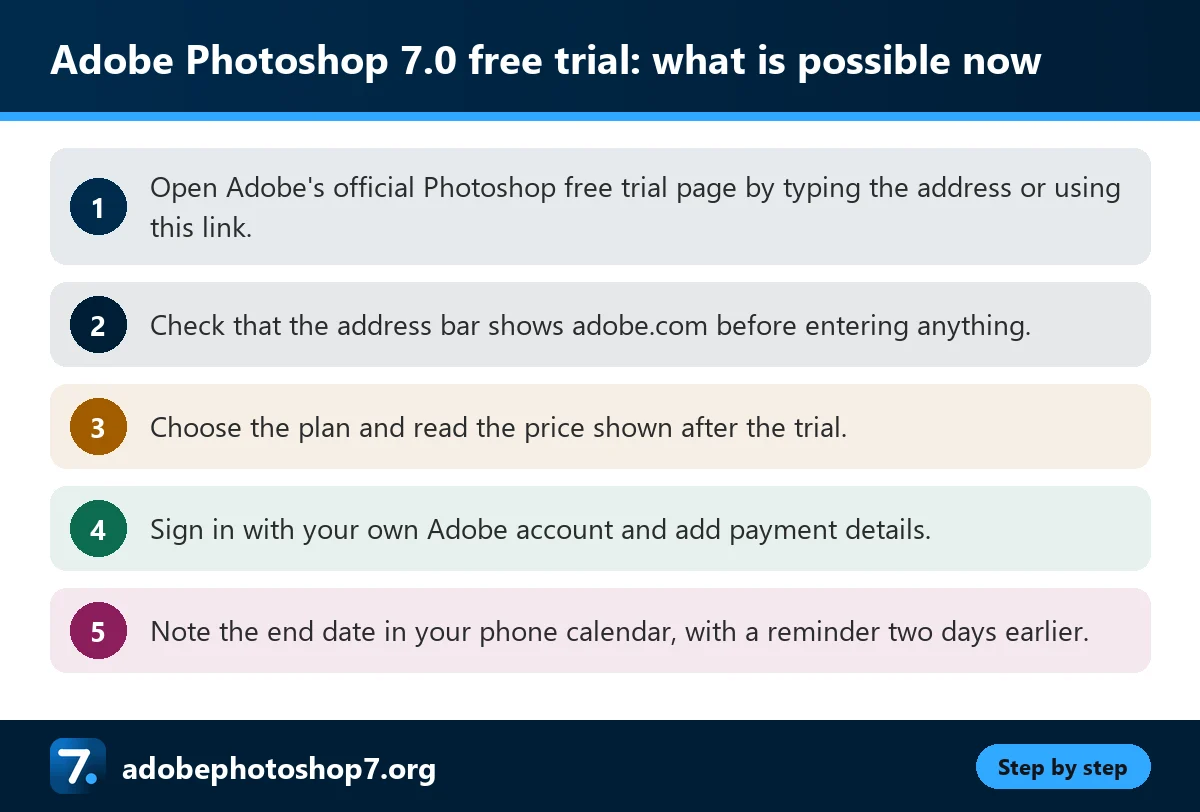
- Open Adobe's official Photoshop free trial page by typing the address or using this link.
- Check that the address bar shows adobe.com before entering anything.
- Choose the plan and read the price shown after the trial.
- Sign in with your own Adobe account and add payment details.
- Note the end date in your phone calendar, with a reminder two days earlier.
To cancel before you are charged, follow these steps.
- Sign in to your Adobe account page.
- Open Manage Plans for the trial.
- Choose Cancel Plan and finish every confirmation screen.
- Keep the confirmation email or a screenshot.
Tip: Do the cancel steps only from your own device. Never leave your Adobe account signed in on a cyber cafe computer.
Make the seven days count. Do not start the trial on a busy week. Collect your sample files first: one portrait, one PSD with layers, one print job. Test the exact jobs you do. A trial spent exploring menus tells you little about whether to pay.
Photopea: a browser editor that feels familiar
Photopea is a free, advert-supported image editor that runs in the browser. It is made by an independent developer, not by Adobe. Its layout and menu names are close to Photoshop, so many 7.0 users find their way quickly.
Files, privacy and offline use
Photopea's learning pages say PSD is its main format for keeping layers. It also opens formats such as JPG, PNG and Sketch. The site states that it runs on your device and does not upload your files to the internet.
The same pages say you can load the website, disconnect, and continue working. That is useful during a weak connection, but save your work to disk often. Photopea's privacy page warns that closing it without saving loses the work.
Adverts and the Premium account
The free account shows adverts beside the editing area. Photopea says Premium removes adverts, and its privacy page describes it as a one-time payment for a set period. Check current terms on the site, because we do not quote prices here.
Never click an advert thinking it is part of the editor. A "Download" button inside an advert box has nothing to do with saving your picture.
How to edit a file in Photopea
- Open photopea.com in an up-to-date browser.
- Choose File - Open and select your picture or PSD.
- Make your edits, adding new layers instead of painting on the original.
- Choose File - Save as PSD to keep the layers.
- Choose File - Export As and pick JPG or PNG for the finished copy.
- Open the saved file from your folder to confirm it before closing the tab.
Pixlr: quick edits in the browser
Pixlr offers web editors for fast photo work. Pixlr Express suits simple filters, cropping and templates. Pixlr Editor is the one with a layer-based workspace.
Free use and its limits
Pixlr says you do not need an account to use Pixlr Editor on the web. It recommends one if you want to keep work in an online library and return later. Its paid tiers list unlimited saves and no adverts, so expect limits on the free plan.
We could not confirm the current free save limit from an official page. Check the Pixlr pricing page before you begin a batch of customer photos.
Using Pixlr with PSD files
Simple PSD files may open well, while complex files can lose effects or masks. Test a copy first and compare it with a flat JPG exported from the original programme. Keep the original PSD untouched.
GIMP: a free desktop editor for serious work
GIMP is free software under the GNU General Public License, so you can lawfully install it without buying a serial. It is a desktop programme, not an online one. At the time of writing, the GIMP downloads page lists version 3.2.8, released on 2 November 2026.
Which computers it suits
The same page says the direct Windows installer supports Windows 10 version 1903 or newer. The Microsoft Store version needs Windows 11 or a recent Windows Server. A Windows XP machine that still runs Photoshop 7.0 cannot take the current GIMP installer.
Download only from gimp.org. Pages using the GIMP name with words like "unlocked" or "full version" make no sense, because the real programme is already free.
PSD, CMYK and non-destructive filters
GIMP 3.0 improved PSD import and export, and it can import and export CMYK PSD, TIFF and JPEG files. It also added filters you can edit again after applying them. GIMP is still not Photoshop, so complex PSD files need checking.
After Photoshop 7.0, you will find that layers, selections, levels and curves work on familiar ideas. Menu positions and several shortcuts differ. Levels sits under the Colors menu, and image resizing is Image - Scale Image. GIMP's own project file is XCF, and finished pictures go out through File - Export As.
Krita: free painting software that also opens PSD
Krita is free, open source software built mainly for drawing, painting and comics. It can retouch a photo, but that is not its main aim. The official download page listed version 5.3.5, released on 25 November 2026, for Windows, macOS, Linux and Android.
The page gives Windows 8.1 or higher, at least 4 GB of RAM and 16 GB recommended. The direct download is free. Paid copies on some app stores are official too, and part of that money supports development.
PSD support in Krita
Krita's manual says it supports raster layers, blending modes, layer styles, vector shapes, text layers, groups and transparency masks in PSD. It also warns that no outside programme can support PSD completely. Use Krita's own format for work that stays in Krita.
Photoshop 7.0 compared with current Photoshop
Current Photoshop is a different product in practice, even though the core ideas of layers and selections remain. Compare them before deciding whether an upgrade is worth money and learning time.
| Point | Photoshop 7.0 | Current Photoshop |
|---|---|---|
| Released | 2002 | Updated regularly |
| How you get it | Not offered by Adobe today | Subscription plan or trial |
| Browser version | None | Photoshop on the web |
| Supported systems | Windows and Mac of its era | Current systems listed by Adobe |
| AI tools | None | Generative and automatic selection features |
| Internet needed | No for editing | Needed for sign-in and cloud features |
Version 7.0 still handles layers, masks, levels, curves, clone stamp, healing brush, type and print preparation. For simple studio jobs, those tools cover a lot. A licence holder with a working old computer may not feel any urgent need.
Its weak side is age. It predates modern phone photo formats and current camera files. Windows 10 and 11 are not supported for it, as explained in our Windows 10 and 11 guide. Mac and phone users face harder limits, covered on the Mac and Android page.
Feature by feature: 7.0, Photopea, GIMP, Krita and Pixlr
Each editor covers the basics, but they differ in where they run and what they are built for. The table is a guide for shortlisting, not a score. Test your own files before you decide.
| Point | Photoshop 7.0 | Photopea | GIMP | Krita | Pixlr Editor |
|---|---|---|---|---|---|
| Runs in | Old Windows or Mac | Browser | Installed | Installed | Browser |
| Cost model | Licence needed | Adverts or Premium | Free software | Free software | Freemium |
| Layers | Yes | Yes | Yes | Yes | Yes |
| Opens PSD | Yes, native | Yes | Yes, with limits | Yes, with limits | Test first |
| Own working format | PSD | PSD | XCF | KRA | Check on site |
| Main strength | Familiar to trained users | Photoshop-like layout | General photo editing | Painting and drawing | Quick edits |
"Opens PSD" does not mean the file will look identical. Text, layer effects and adjustment layers are the parts most likely to change. A tick in a feature list also says nothing about how comfortable the tool feels on your screen.
Match the tool to the computer too. An old shop computer with little memory may struggle with a heavy browser tab. A new laptop with a weak connection may do better with installed software. Try the same medium-sized file on the machine you will really use.
Using an online editor for old PSD files
You can open many Photoshop 7.0 PSD files in a current editor, provided you work on a copy. Old files are usually small by today's standards, which helps. The risk lies in text, fonts and effects.
How to open an old PSD safely
- Copy the PSD into a new folder and rename the copy so the original stays clear.
- If you still have a working 7.0 installation, export a flat JPG as a visual reference.
- Open the copy in your chosen editor.
- Compare it with the reference at 100% zoom, area by area.
- Check every text layer for changed fonts, spacing or line breaks.
- Save under a new name before making changes.
What can break, and how to protect it
Missing fonts cause the most visible damage. A wedding card set in a particular Hindi or decorative font will change if the new computer lacks it. In Photoshop 7.0, you can keep an editable master and also save a version where type is rasterised through Layer - Rasterize - Type. Rasterised text cannot be retyped, so never overwrite the master.
Layer effects such as shadows and glows can render differently elsewhere. If the look matters more than editing, merge a duplicate copy and keep the layered file separately.
When a file will not open
Check the file size first, since web editors have limits. Then confirm that the file really is a PSD and was copied completely from the old drive. A file that fails everywhere may be damaged. Our problem-fixing guide covers common errors on the 7.0 side.
Online practice for Adobe Photoshop 7.0 students
You can practise most Photoshop 7.0 syllabus skills in another editor, because layers, selections and tonal correction are shared ideas. What you cannot practise elsewhere is the exact menu position or dialog box of 7.0. If your exam is on 7.0, ask the institute which software the practical will use.
Six practice exercises that transfer well
Do each exercise on your own photos or on pictures you have permission to use.
- Straighten and crop. Take a tilted photo of a notebook page and crop it to a clean rectangle.
- Fix a dull picture. Adjust levels until the darkest and lightest parts look natural.
- Remove small marks. Use clone or healing tools to clean dust spots from a scanned print.
- Build a greeting card. Combine a background, one photo and two text layers.
- Cut out an object. Select a simple item on a plain background and place it on a new one.
- Prepare two outputs. Save one layered master and one small JPG for sharing.
A one-week practice plan
| Day | Focus | You should be able to |
|---|---|---|
| 1 | Open, save, zoom, undo | Save a master and a copy without overwriting |
| 2 | Crop and image size | Explain pixels versus print size |
| 3 | Layers | Add, rename, reorder and hide layers |
| 4 | Selections | Select a shape and soften its edge |
| 5 | Levels and colour | Correct a photo without blowing out detail |
| 6 | Clone and healing | Repair a scratch without obvious repeats |
| 7 | Type and layout | Finish one card from a blank page |
For lesson order and explanations in 7.0 terms, follow Learn Photoshop 7.
To check your own work, zoom to 100% and look at edges, skin and text. Switch the top layers off to see what you changed. Then view the picture on a phone, because most family and customer viewing happens there.
How Photoshop 7.0 lessons translate to online editors
Most lesson steps have an equivalent, though names and positions can vary. The table helps you follow a 7.0 textbook while working in another tool. Menus in web and free editors can change between releases, so use their search or help if an item has moved.
| Task | In Photoshop 7.0 | In Photopea | In GIMP |
|---|---|---|---|
| Change pixel or print size | Image - Image Size | Image - Image Size | Image - Scale Image |
| Correct tones | Image - Adjustments - Levels | Image - Adjustments - Levels | Colors - Levels |
| Keep layers | Save as PSD | File - Save as PSD | File - Save as XCF |
| Make a JPG copy | File - Save As or Save for Web | File - Export As | File - Export As |
| Copy clean texture over a mark | Clone Stamp tool | Clone tool | Clone tool |
Shortcuts in a browser
Some keys you use in 7.0 are already taken by the browser. Ctrl + N opens a new browser window in many browsers, and Ctrl + W closes the tab. Be careful with Ctrl + W during unsaved work. Our Photoshop 7.0 shortcut keys list describes the desktop programme, so do not expect every key to match online.
Habits matter more than menus. Duplicate before you edit. Name your layers. Keep one master file. These three habits work in every editor on this page and make later changes much easier.
Online work in Adobe Photoshop 7.0 for jobs and services
If a job, form or client asks for "online work in Photoshop 7.0", clarify what is really needed. Usually the client wants a finished image file sent over the internet. The software used to make it often does not matter, as long as the file meets the specification.
Ask for the specification first
Collect these points in writing before you start:
- Final size in pixels or millimetres
- File type, such as JPG, PNG or PSD
- Maximum file size
- Background colour, if any
- Whether layered source files must be delivered
- Fonts and logos the client has permission to use
When a client insists on PSD
A PSD from a free editor can usually be opened in Photoshop, but test it. Mention which editor you used if the client will continue editing. Clear communication avoids a dispute over a shifted heading.
Be careful with "earn from home" offers
Treat offers that ask you to pay a registration fee, buy a "software kit" or install an unknown editor with suspicion. Genuine work does not require you to run cracked software. Never share an OTP or bank password to receive a data or photo editing job.
Photo studios and cyber cafes: working online safely
A shop can use browser editors for quick jobs, but customer photos and ID documents need care. Decide the rules before a busy day, not during it.
Rules for a shared computer
- Create a separate Windows user for customer work.
- Do not save passwords in the browser.
- Sign out of every account when the job is done.
- Delete customer copies after delivery, including the Downloads folder and Recycle Bin.
- Tell the customer if a service stores pictures online.
Passport and stamp photos
For this narrow job you may not need a general editor at all. Our passport size photo tool opens JPG, PNG or WebP in the browser without uploading it. It offers passport, stamp, small ID, US and online upload sizes, with brightness, contrast and a face guide. It makes a single JPG and a print sheet on 4x6 inch or A4 at 300 DPI.
It does not change backgrounds, rotate, retouch or check official acceptance. Take the photo straight, against the right background, and print the sheet at 100%.
Background changes are different. If a customer needs a new background, use an editor with selection and masking tools. The background removal guide explains the 7.0 methods, and the same thinking applies elsewhere. Check the rules of the receiving office, because some applications restrict edited photos.
Privacy: what happens to a picture you upload
It depends on the service, so read its privacy page before opening anything sensitive. Some editors process the image on your device. Others send it to a server for storage or for AI features.
Questions to answer before uploading
| Question | Why it matters |
|---|---|
| Is the file processed on my device or a server? | Server copies can outlast your session |
| Do AI tools send the image elsewhere? | A feature can behave differently from the basic editor |
| Is an account saving a copy automatically? | Cloud libraries keep files until removed |
| Who else uses this computer? | Autosaved files and history may remain |
| Can I delete my data? | You may need to ask the provider |
Files that deserve extra caution
Keep Aadhaar, PAN, passport pages, medical reports and children's photos away from unknown websites. If you must edit them, use installed software or a tool that states clearly that nothing is uploaded. Add a watermark or mask unneeded numbers on copies where the receiving organisation allows it.
How to test whether a tool needs the internet
- Open the editor and let it load completely.
- Choose a harmless test picture.
- Turn off the internet connection.
- Try a crop, an adjustment and an export.
- Note which features stop working.
This test shows what works offline. It does not prove that nothing is sent after you reconnect, so the privacy page still matters.
Before you hand over a customer's picture, also check where autosave or recent-file lists keep it. A recent-file entry can show a name or preview to the next person who sits down. Clear those entries when the job is closed.
Slow internet, power cuts and offline backup plans
A browser editor is only as reliable as your computer, connection and power supply. If any of them is weak, plan a fallback.
Habits that prevent lost work
Save to your own disk after each major step, not only at the end. Use clear names such as customer-card-v1 and customer-card-v2. Do not trust the browser's memory of an open tab, because a crash or restart can empty it.
Keep an installed editor ready as well. A shop that depends on editing should keep one installed option for outages. GIMP works without a connection once installed. A Photoshop 7.0 licence holder with a suitable old computer can also keep using it, after reading the installation guide.
Phones, tablets and Chromebooks
Photoshop 7.0 does not run on phones, tablets or Chromebooks. On these devices, your practical choices are mobile apps and web editors made for them.
On an Android phone
Install apps only from a store you trust, and read the publisher name. An app titled "Photoshop 7.0" from an unknown publisher is not Adobe's 2002 software. Adobe offers its own mobile apps, and Krita publishes an Android version meant for drawing.
On a Chromebook
Web editors are the natural choice. Adobe lists its own requirements for Photoshop on the web, so compare them with your model. Photopea and Pixlr may run too, but large layered files will test a modest device.
Fine hair selection, album design and print layout are tiring on a phone. Use the phone for capture and quick correction, then move to a computer for detailed work.
Adobe Photoshop 7.0 upgrade: the realistic paths
You cannot upgrade a 7.0 licence into a current plan inside the programme. Upgrading today means starting a new Adobe plan, moving to a free editor, or staying where you are.
Upgrade to CS5 and other old versions
Searches for "Photoshop 7.0 upgrade to CS5" refer to a product from 2010. Adobe stopped selling Creative Suite boxes and licences years ago, with sales of the last version, CS6, reported to have ended in January 2017. A CS5 "upgrade" file or serial from a random page is not a lawful upgrade.
Choosing your path
| Situation | Sensible path | Check first |
|---|---|---|
| Clients demand current Photoshop files | Current Adobe plan | Monthly cost against monthly income |
| Home editing on a newer PC | GIMP | Time needed to relearn menus |
| Occasional PSD viewing | Photopea | Fonts and effects in your files |
| Stable old studio PC with a licence | Stay on 7.0, keep it offline where possible | Backups and spare hardware |
| Drawing is the main work | Krita | Tablet driver support |
On cost, we do not quote prices because they change and carry offer conditions. On the day you decide, read the first-year price, the later price, the billing period and the cancellation terms. A low first-year figure can rise afterwards.
Can you buy Adobe Photoshop 7.0 online?
You cannot buy it from Adobe, and anything sold elsewhere needs careful checking. A listing with a low price and "instant serial by email" is a warning, not a bargain.
Checks for a second-hand boxed copy
Ask for the original disc, packaging, licence documents and purchase proof. Ask whether the licence was transferred under Adobe's terms, and whether another person still uses it. If the seller cannot answer, walk away. Our serial number page explains where a genuine owner should look for their own number.
Is it worth buying at all? For most new users, no. The software is more than two decades old and unsupported on current systems. Spending the same time and money on a supported editor is usually the better use.
How to spot a fake online Photoshop 7.0 site
A fake page usually shows itself before you click anything important. Slow down when a page promises a paid product free and "online".
Warning signs
- The page uses Adobe logos but the address is not adobe.com.
- A "Start online" button downloads an exe, zip, apk or iso file.
- It asks you to disable antivirus software.
- It offers a serial, crack or pre-activated copy.
- It asks for browser notification permission before showing any editor.
- It shows countdown timers and several different download buttons.
Sites such as getintopc or softonic often appear for these searches. We do not endorse any copy of Photoshop 7.0 from them or from similar pages.
What to do if you already clicked
- Disconnect from the internet if a file ran and the computer behaves oddly.
- Run a full scan with up-to-date security software.
- Uninstall programmes you did not intend to add, and remove unknown browser extensions.
- Change important passwords from a different, clean device.
- Contact your bank quickly if you entered payment details.
Worked examples: choosing for common situations
The right choice becomes clearer when you picture a real job. The situations below are illustrations, not reports of actual users. Change the answer if your files, computer or rules differ.
| Situation | Reasonable first choice | Why | Watch out for |
|---|---|---|---|
| A school project poster on a borrowed laptop | Photopea or Pixlr | Nothing to install | Download the file before leaving |
| A family album on your own PC | GIMP | Installed and free to use | Learning time |
| A comic or hand-drawn invitation | Krita | Made for drawing | Export a JPG or PNG to share |
| A client sends a layered PSD brochure | Current Photoshop | Fewer compatibility surprises | Plan cost and trial end date |
| One stamp size photo for a form | Passport and stamp photo maker | Direct sizing and print sheet | Background and acceptance rules |
Example: a shop receives an old wedding card file
The customer brings a PSD made years ago and wants only the date and venue changed. First copy the file. Open it in an editor and look for font warnings or shifted lines. If the main lettering changes, ask for the font or recreate that line with the customer's approval. Send a proof image before printing the full order.
Example: a student has only a phone
The student has a 7.0 textbook but no computer. Reading the chapters and noting each step still helps with concepts. Hands-on practice is better on a computer at a college lab or institute that holds proper licences. A phone app can teach cropping and colour correction, but it will not show 7.0 menus.
Example: a home user wants to brighten scanned photos
Scan the prints, keep those scans as masters, and edit copies. A free editor is sufficient for levels, cropping and dust spots. There is no need to look for a 2002 program for this job. Save finished pictures under new names, so relatives can ask for changes later.
Example: a flex banner for a local event
A banner file can be far larger than a photo for social media. Ask the printer for the size, resolution and file type before you design anything. A browser editor with a file size limit may not suit the job, so plan to build it in an installed editor. Send the printer a small proof first and confirm the spelling with the customer. Keep the layered master, because dates and names often change at the last minute.
Practical tips for editing online
These habits reduce lost work and surprises:
- Keep the original untouched. Edit a copy with a new name.
- Check pixel dimensions first. Enlarging a tiny picture will not restore detail.
- Save the layered file and the final JPG. One is for changes, the other for delivery.
- Export JPG only once at the end. Repeated saving can reduce quality.
- Bookmark the real site. It protects you from look-alike search results.
- Update your browser. Old browsers may not run modern editors properly.
- Close extra tabs. Large images need memory.
- Test print one copy. Screen colour and paper colour often differ.
- Write down font names. You will need them when moving between computers.
- Back up finished work. Use an external drive or a service you control.
Moving from Photoshop 7.0 to an online editor
Move gradually, with copies, and keep the old setup until the new one has handled real jobs. A sudden switch during a deadline causes most of the trouble.
Migration steps
- List the jobs you do every week, such as ID photos, cards or banners.
- Pick one sample file for each job and copy it to a test folder.
- Collect the fonts, brushes and logos those files depend on.
- Open each sample in the new editor and note every difference.
- Recreate one job from the beginning and time yourself.
- Print both versions on the same paper and compare.
- Switch only the jobs that pass, and keep the others where they are.
Organise your archive while you move. Group old work by year and customer. Keep layered masters apart from delivery copies. A small text note listing the fonts used in a project saves hours later.
What you may not carry over
Actions, custom brushes, gradients and patterns made in 7.0 may not behave the same elsewhere. Check each one on a test file. Redo a simple action by hand if it is quicker than converting it.
Troubleshooting online editors
Most problems come from the browser, memory or file size rather than from your editing steps. Work through the simple causes first.
The editor does not load
Refresh the page, update the browser and try a private window, which often runs without extensions. A strict ad blocker or office network filter can also block parts of an editor. Try another network if the page stays blank.
The editor is slow or crashes
Close other programmes and tabs. Reduce the canvas size on a copy if the output does not need so many pixels. Merge finished layers in a duplicate file. An old computer with little memory may simply need a lighter task.
The saved file is missing
Check the browser's download list and Downloads folder. Browsers often save there without asking. A cloud save may sit inside the service's own library instead of on your disk.
Colours look different after export
Check whether the file is in RGB or CMYK mode. In 7.0, Image - Mode - RGB Color gives a screen-friendly version of a copy. For press printing, ask the printer which format and colour setup they need.
Text changed or moved
The font is probably missing. Add the same font where the editor allows it, or return to the original programme and export a flat copy. Proofread the whole design again after any font substitution.
Frequently asked questions
Is Adobe Photoshop 7.0 free?
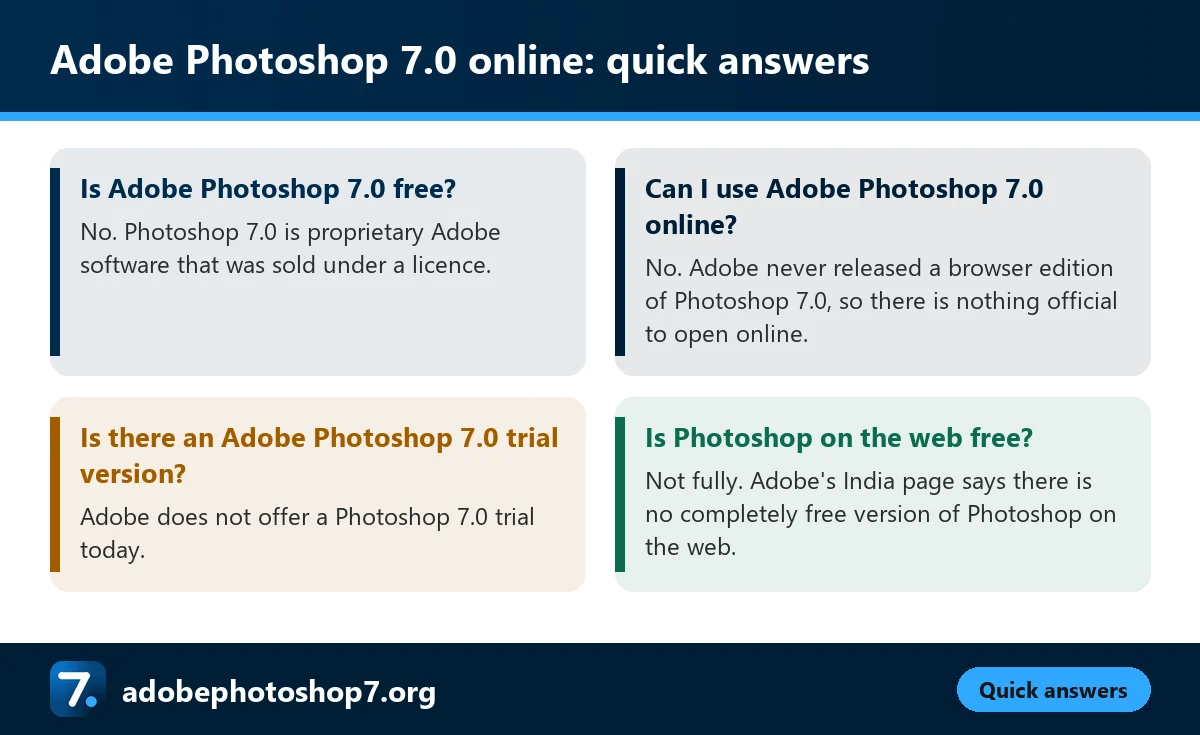
No. Photoshop 7.0 is proprietary Adobe software that was sold under a licence. Adobe not selling it today does not turn it into freeware. Installing it needs your own genuine licence and serial number. If you need an editor without paying, choose GIMP or Krita, which are free software, or Photopea, which is free with adverts in the browser.
Can I use Adobe Photoshop 7.0 online?
No. Adobe never released a browser edition of Photoshop 7.0, so there is nothing official to open online. Websites using that name usually offer a different editor, an installer or adverts. If you want to work in a browser, use Photoshop on the web with a plan or trial, or an independent editor such as Photopea or Pixlr.
Is there an Adobe Photoshop 7.0 trial version?
Adobe does not offer a Photoshop 7.0 trial today. Its official trial covers the current Photoshop and lasts seven days according to the India trial page, with one trial per person. Payment details are requested, and the plan becomes paid unless you cancel in time. Files claiming to be a 7.0 trial on other sites should not be trusted.
Is Photoshop on the web free?
Not fully. Adobe's India page says there is no completely free version of Photoshop on the web. You can try some tools through guided tutorials without an account. Uploading and editing your own pictures needs an Adobe account with a plan or free trial. Offers and plan names change, so read the page on the day you sign up.
Can I upgrade Adobe Photoshop 7.0 to CS5?
Not through any normal route today. Adobe no longer sells CS5. When it was on sale, retail listings for the CS5 upgrade named CS2, CS3 and CS4 as qualifying versions, not 7.0. A person with only 7.0 would have needed a full licence. Today the official path to a newer Photoshop is a current Adobe plan.
Where can I buy Adobe Photoshop 7.0 online?
Adobe does not sell it, so there is no official shop. Marketplace listings may be old boxed copies, copied discs or bare serial numbers. A bare serial or a burned disc is not a licence. Before paying for any second-hand copy, check what proof of ownership and transfer the seller can show, and whether it will run on your computer.
Which free online editor is closest to Photoshop 7.0?
Photopea is a practical first choice because its menus, panels and layer handling resemble Photoshop. It is an independent product, not Adobe's, and it is paid for through adverts. Some shortcuts clash with browser shortcuts, and results can differ from Photoshop. Test your usual job, such as a layered ID card or album page, before relying on it.
Is there an Adobe Photoshop 7.0 free online use option?
There is no lawful free online use of Photoshop 7.0, because no official online edition exists. You can get similar results with other tools. Photopea runs in the browser with adverts, Pixlr offers a free tier with limits, and GIMP is free to install. Each is a separate product, so some menus and file results will differ.
Can an online editor open my Photoshop 7.0 PSD files?
Often, yes. Photopea uses PSD as its main format, and GIMP and Krita also read PSD. Results can differ for text, fonts, layer effects and adjustment layers. Work on a copy, compare it with a flat JPG reference, and check every line of text before sending the design to a customer or printer.
What does Adobe Photoshop 0.7 online mean?
It is most likely a typing mistake for Photoshop 7.0. A tiny version number such as 0.7 would not help you find any real product. Search for the job you want done instead, such as editing a photo in a browser. Then check the publisher and address before opening a result or downloading anything.
Do I need internet to use Photoshop 7.0?
The desktop programme was made to edit files stored on your computer, so everyday editing does not depend on a web connection. That is different from browser editors, which need the page to load first. Some can continue offline afterwards, as Photopea says it can. Internet is still needed for Adobe's current sign-in and cloud services.
Is GIMP a legal replacement for Photoshop 7.0?
Yes, GIMP is free software released under the GNU General Public License, and you may use it for personal or paid work under that licence. It is not Photoshop and does not use the same menus everywhere. It handles layers, selections, tone correction and retouching. Download it from gimp.org and test your PSD files before switching fully.
Can I do passport photos online without Photoshop?
Yes, for sizing and layout. Our passport photo maker crops the picture to common sizes, adjusts brightness and contrast, and creates a JPG and a print sheet in your browser without uploading it. It does not remove backgrounds, rotate or retouch, and it cannot check whether an office will accept the photo. Verify the current official rules.
Is Photopea made by Adobe?
No. Photopea is an independent web editor with its own developer, adverts and Premium account. Its resemblance to Photoshop in layout and file support does not make it an Adobe product or an online Photoshop 7.0. Read Photopea's own privacy and account pages, and contact Photopea rather than Adobe if something goes wrong with it.
Will online editors work on a Windows XP computer?
Do not count on it. Modern web editors expect a current browser, and old systems often cannot install one. An unsupported system is also risky for browsing and sign-ins. If an XP computer runs a licensed Photoshop 7.0 for local work, keep it away from the internet and use a newer device for anything online.
Our recommendation for online and free editing
Start with what the job needs, and stay lawful. For a quick browser edit or an old PSD, try Photopea on a copy. For free everyday editing on your own computer, install GIMP. For painting, choose Krita. Pick Photoshop with an Adobe plan when clients or courses require current Photoshop.
Keep Photoshop 7.0 only if you hold a genuine licence and it still runs reliably on suitable hardware. Do not download an unofficial copy because a lesson or friend mentions that version.
Students: learn layers, selections and tones in a free editor, and confirm which software your practical exam uses. Check whether your institution takes part in Adobe's student offer before paying for anything.
Studios and shops: keep one dependable installed editor and treat browser tools as helpers. Test your most common print job from start to finish. Put customer privacy rules on paper so every staff member follows them.
Home users: if you only crop, brighten and resize family photos, a simple editor is enough. Try it for a few weeks before paying for a larger package. You can always move up later with your original files intact.