The last Adobe Photoshop 7.0 update we could find is 7.0.1, a small free patch for people who already have a licensed copy of 7.0. It fixes a handful of bugs. It does not turn 7.0 into a newer version. For most other faults, a settings reset, a scratch disk change or a proper device driver helps more than any update.
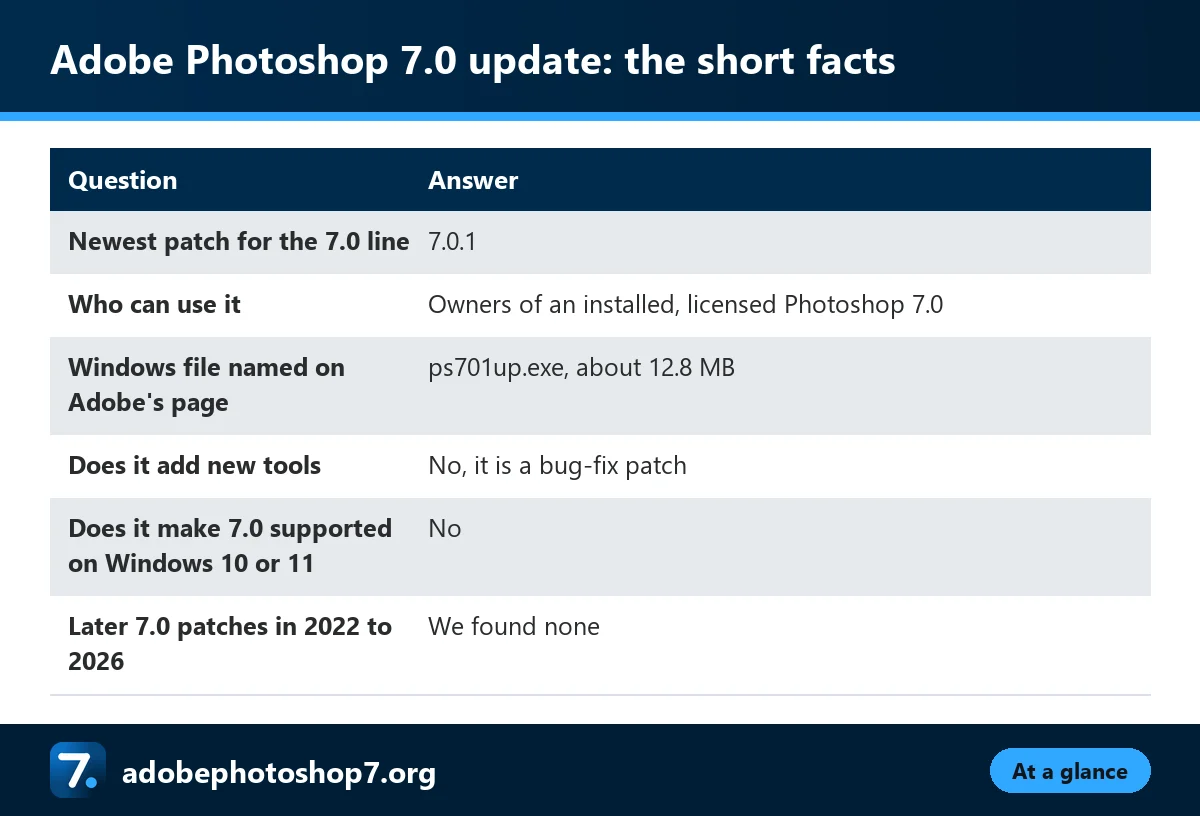
Adobe Photoshop 7.0 update: the short facts
Version 7.0.1 is a maintenance patch for version 7.0, with separate files for Windows and Macintosh. Adobe describes it as fixing problems found after 7.0 was released.
| Question | Answer |
|---|---|
| Newest patch for the 7.0 line | 7.0.1 |
| Who can use it | Owners of an installed, licensed Photoshop 7.0 |
| Windows file named on Adobe's page | ps701up.exe, about 12.8 MB |
| Does it add new tools | No, it is a bug-fix patch |
| Does it make 7.0 supported on Windows 10 or 11 | No |
| Later 7.0 patches in 2022 to 2026 | We found none |
Adobe's update page for Windows sits on its support downloads server, and it is listed under Sources below. When we tried to open it with an automated tool in November 2026, the server's security certificate had expired. We read its wording through search results instead. If your browser shows a certificate warning, do not click past it just to get a file. Waiting is safer than running a file you cannot trust.
What the 7.0.1 update fixes
The patch deals with specific faults, most of which matter to print and production work. Adobe's notes for the Windows file include these:
- Total ink limit returns to a default of 300%, as in earlier versions.
- White areas in CMYK images saved as JPEG no longer shift in colour.
- TIFF files with LZW compression are written correctly again.
- Targa files keep alpha transparency data the way older versions did.
- A program error when resampling certain large 16-bit documents is fixed.
- Photoshop no longer appears to freeze when applying KPT3 filters.
- Compatibility with older Pentium III hardware is better.
The Macintosh notes are similar, with a mention of older G4 computers in place of the Pentium III item. If none of these describes your fault, installing the patch will probably not cure it. Keep reading and match your symptom instead.
What the update does not add
The 7.0.1 patch does not add camera raw support, new file formats or new menus. In Photoshop 7 days, raw support came from a separate paid Camera Raw plug-in that Adobe has since discontinued. The patch also does not change the licence. You still need the genuine licence that came with your 7.0 copy.
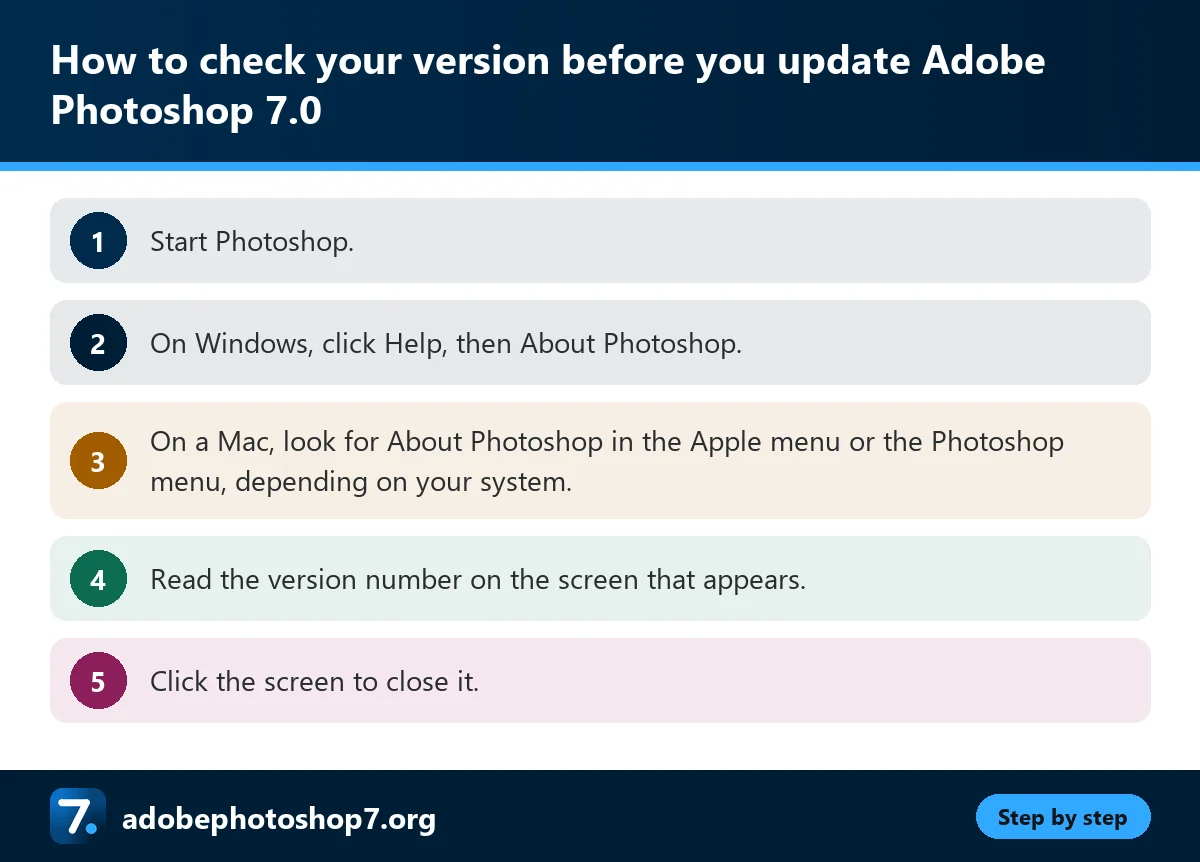
How to check your version before you update Adobe Photoshop 7.0
Open the About screen to see whether you already have 7.0.1. Many old studio and office computers were patched years ago, and nobody remembers.
- Start Photoshop.
- On Windows, click Help, then About Photoshop.
- On a Mac, look for About Photoshop in the Apple menu or the Photoshop menu, depending on your system.
- Read the version number on the screen that appears.
- Click the screen to close it.
If it reads 7.0.1, you have the patch and can stop looking for updates. If it reads 7.0, the patch has not been applied. If it reads something like CS or CS2, you are on a different product, and 7.0 patches do not apply to it.
Pick the update that matches how your copy was sold. Adobe listed Windows and Macintosh files separately, and at least one language edition (Italian) had its own page. A patch for the wrong edition may refuse to run. Do not force it.
How to install the Photoshop 7.0.1 update
Install the patch over your existing 7.0 installation, with Photoshop closed. Use only a file that you got from Adobe, or one you saved from Adobe yourself years ago and have kept safely.
Spend five minutes on these checks, because a half-finished patch is more annoying than no patch.
- Confirm that Photoshop 7.0 opens normally at least once.
- Save and back up your open work, actions and brush files.
- Keep your licence details and original disc where you can reach them.
- Sign in with a Windows account that is allowed to install programs.
- Close Photoshop, ImageReady and any browser windows.
Then apply the patch in this order:
- Run the update file you obtained from Adobe. It unpacks its setup files into a folder.
- Read Adobe's instruction to disable virus protection while updating. If you follow it, disconnect from the internet first.
- Double-click Setup.exe in the unpacked folder.
- Follow the on-screen instructions to the end.
- Switch your virus protection back on immediately.
- Start Photoshop and open Help, then About Photoshop, to confirm 7.0.1.
Warning: Never turn off your antivirus to run an "update" from a download site, a shared drive or a stranger's pen drive. A file named like Adobe's patch can contain anything.
If the updater cannot find Photoshop
Adobe's note for this case is to reinstall Photoshop 7.0 and run the updater again. A copied program folder is a common reason, because the updater looks for a properly installed copy. Reinstall from your own media; our install guide covers the setup screens one by one.
You may also see the in-program online update or registration features fail with a connection error. Those services belonged to 2002. A failure there does not mean your computer or internet connection is broken.
Adobe Photoshop 7.0 update 2022 to 2025: is anything newer?
We found no Adobe patch for the 7.0 line after 7.0.1, whatever year a web page puts in its title. Searches such as "adobe photoshop 7.0 update 2023" mostly lead to download sites that add the current year to attract clicks.
How to treat pages offering a "new" 7.0 update
Treat any "latest 2025 update file" for a 2002 program as suspicious. Look for these warning signs:
- A version number that Adobe's pages do not mention, such as 7.0.5 or 7.1.
- A file hundreds of megabytes larger than a small patch should be.
- Promises of "full version", "no licence needed" or "works forever".
- A request to install a download manager or browser extension first.
- Instructions to keep your antivirus off permanently.
We do not offer or link to repacked installers. For what is lawful to download today, read Photoshop 7.0 download facts.
Can you update Photoshop 7.0 to CS5 or CS6?
No update file turns Photoshop 7.0 into CS5 or CS6. Those are separate products with their own installers and licences. Adobe community posts say Adobe no longer sells Creative Suite, including CS6, and warn that resold copies are often pirated.
Your realistic choices are Adobe's current subscription products, a different editor, or staying on 7.0 on the computer where it already works. Check Adobe's own site for what it sells now and on what terms. Our page on online and free options covers editors that need no old installer.
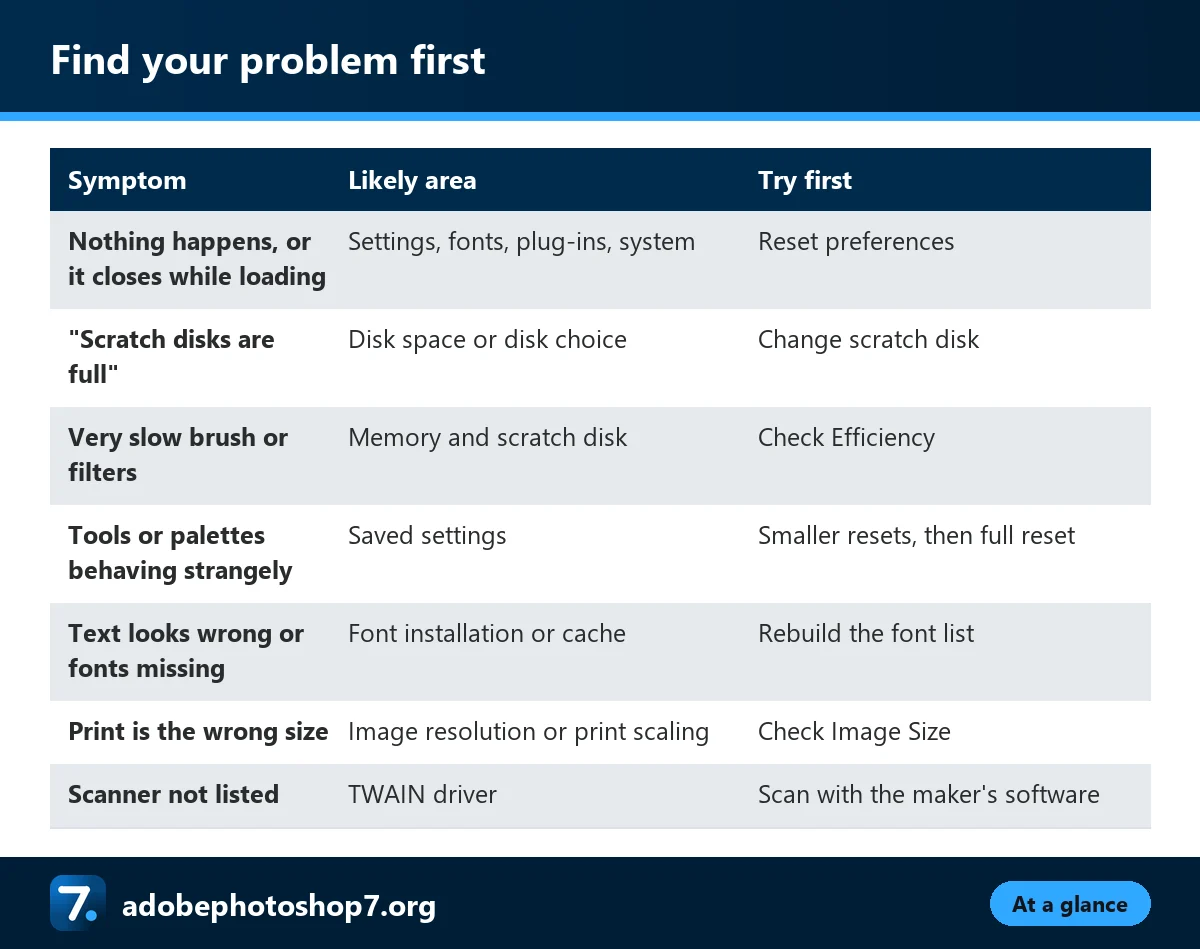
Find your problem first
Match your symptom to a section before changing anything. Random fixes make it hard to know what worked.
| Symptom | Likely area | Try first |
|---|---|---|
| Nothing happens, or it closes while loading | Settings, fonts, plug-ins, system | Reset preferences |
| "Scratch disks are full" | Disk space or disk choice | Change scratch disk |
| Very slow brush or filters | Memory and scratch disk | Check Efficiency |
| Tools or palettes behaving strangely | Saved settings | Smaller resets, then full reset |
| Text looks wrong or fonts missing | Font installation or cache | Rebuild the font list |
| Print is the wrong size | Image resolution or print scaling | Check Image Size |
| Scanner not listed | TWAIN driver | Scan with the maker's software |
| File will not open | Format or newer feature | Re-save from the source program |
Change one thing, test, and write down the result. If a change does not help, undo it where you can.
How to reset Adobe Photoshop 7.0 settings
Hold Ctrl+Alt+Shift immediately after you start Photoshop, then answer Yes when it asks to delete the Adobe Photoshop Settings file. On a Mac, the keys are Command+Option+Shift. This returns preferences to their defaults and cures many odd faults caused by a damaged settings file.
Reset with the keyboard at start-up
Timing matters more than anything else here.
- Close Photoshop completely. Close ImageReady too.
- Start Photoshop from its shortcut or the Start menu.
- At once, press and hold Ctrl, Alt and Shift together.
- Keep holding until a box asks whether to delete the settings file.
- Click Yes.
- Let Photoshop finish loading, and answer any colour or welcome prompts.
- Test the fault before you restore your favourite options.
If the box never appears, you pressed too late. Close the program and try again, pressing the keys just as you release the mouse button or Enter key. Some keyboards, especially on older laptops, handle three modifier keys poorly. Try the keys on the other side of the keyboard.
Reset by moving the settings folder
If the keyboard method fails, move the settings folder out of the way while Photoshop is closed. An Adobe community answer gives this location on newer Windows systems:
C:\Users\YourName\AppData\Roaming\Adobe\Photoshop\7.0
Look inside it for the folder called Adobe Photoshop 7.0 Settings. On Windows XP, the user data sits under Documents and Settings instead. The AppData folder is usually hidden, so switch on hidden files in File Explorer first.
- Close Photoshop.
- Open the folder shown above.
- Move the settings folder to your desktop. Do not delete it yet.
- Start Photoshop so that it builds fresh settings.
- If the fault is gone, keep the new settings.
- If nothing changed, close Photoshop and move the old folder back.
Moving is better than deleting because you can reverse it. It also keeps your saved actions and swatches within reach.
What a reset removes
A reset puts your choices back to the factory state. Expect to set these again:
- Scratch disk selection and memory percentage.
- Units, rulers, guides and grid options.
- Colour settings under Edit then Color Settings.
- Palette positions, and recently used file lists.
- Custom keyboard-driven habits that depend on a preference, such as undo behaviour.
Your image files are not touched. Before resetting a working studio computer, photograph each Preferences screen with a phone. Also save important actions, brushes and swatches as separate files from their palette menus.
Smaller resets that keep your settings
Try a narrow reset when only one thing is wrong. A full preference reset is not needed to bring back a lost palette.
Bring back lost palettes
Click Window, then Workspace, then Reset Palette Locations. This moves palettes to their default positions. It helps after someone changes the screen resolution or uses a second monitor, leaving palettes off-screen. If all palettes and the toolbox have vanished, press Tab once, because Tab hides and shows them.
Undo changes inside a dialog box
Hold Alt while a dialog is open, and the Cancel button usually changes to Reset. Click it to return the boxes to the values they had when the dialog opened. This is handy in Levels, Curves and filter windows when you have moved too many sliders.
Fix a screen that looks different
Press F to cycle through the screen modes if the menu bar or window frame has disappeared. Press Ctrl+0 to fit a lost image to the screen. Check the title bar for zoom level and colour mode. A photo that looks tiny is often just zoomed out. Learn more of these in our list of Photoshop 7 shortcut keys.
Adobe Photoshop 7.0 not opening
When Photoshop 7.0 is not opening, the cause is usually a damaged settings file, a bad font or plug-in, no usable scratch disk, or a system it was never designed for. Reported requirements point to Windows 98 through XP, so newer Windows is outside what Adobe supported.
Note where start-up stops
Watch the text on the loading screen, because it names what Photoshop is doing. The last line you see is your best clue.
| Stops or fails at | Look at |
|---|---|
| Before any splash screen | Shortcut, installation, Windows compatibility |
| Reading preferences | Settings file |
| Reading or sorting fonts | Fonts and font list files |
| Loading plug-ins | Third-party or damaged plug-in |
| Building scanner or TWAIN menus | Scanner driver |
| Scratch disk message | Disk space or drive choice |
Whatever the last line says, run these start-up checks in order:
- Restart the computer, so that a stuck Photoshop process is cleared.
- Check that the Windows drive and scratch drive have free space.
- Reset preferences with Ctrl+Alt+Shift.
- Disconnect the scanner and external drives, then try again.
- Move recently added plug-ins and fonts to another folder.
- Right-click the shortcut and try Run as administrator where Windows offers it.
- Reinstall from your own media if the program files are damaged.
Run as administrator and compatibility mode are worth a try, but we found no Adobe statement that they make 7.0 work. Details specific to newer systems are on our Windows 10 and 11 page.
It stops on plug-ins or scanner menus
Move the suspect file out instead of deleting it. Third-party filters live in the Plug-Ins folder inside the Photoshop 7.0 program folder. Move newly added items to a folder on the desktop, then start Photoshop. Return them a few at a time until the fault comes back.
If it stops while preparing scanner menus, an old scanner driver may be crashing it. Update or remove that scanner's software, and test again with the device unplugged.
It closes right after opening
A program that appears and vanishes often has a damaged setting, an incompatible driver or a security tool blocking it. Check whether Windows shows an error box and write down the module name in it. Then check your security software's history for a blocked item. Do not add an exclusion for a program you did not install from genuine media.
Adobe Photoshop 7.0 not working properly after it opens
If Photoshop opens but a tool or command does nothing, the program is often doing exactly what a hidden setting tells it to. Check the document before you blame the installation.
A tool or brush does nothing
Work through the usual suspects in this order:
- A selection exists somewhere, perhaps off-screen. Press Ctrl+D to deselect.
- The wrong layer is active, or the active layer is hidden.
- The layer is locked. Check the lock icons in the Layers palette.
- Brush opacity or flow is very low.
- The blend mode in the options bar has no visible effect on that colour.
- You are painting on a layer mask instead of the picture.
- Caps Lock is on, which changes the brush cursor to a crosshair.
A menu command is greyed out
Grey commands usually mean the image or layer is the wrong type. Many filters need RGB Color mode and 8 bits per channel. Check under Image then Mode. A GIF opened in Indexed Color has very limited options until you convert it to RGB. Type and shape layers must be rasterised before you can paint or filter them.
"Could not complete your request" messages
Read the words that follow, because the message covers many faults. A "program error" on one file but not on others suggests that file is damaged. The same error on every file points to settings, memory or a plug-in. Copy the exact text before closing the box. It is far more useful than "it is not working".
Photoshop 7.0 scratch disk is full
The scratch disk message means Photoshop has no room for its temporary working files. Photoshop writes these to a drive when your image, history and clipboard need more space than the memory it has.
Change the scratch disk
- If Photoshop will not open, hold Ctrl+Alt during start-up to reach the scratch disk choice.
- If it is open, click Edit, Preferences, then Plug-Ins & Scratch Disks.
- Set First to the drive with the most free space.
- Add a second drive if you have one.
- Click OK, close Photoshop and start it again.
On Mac OS X, Preferences sits under the Photoshop menu. A drive other than the Windows drive is often a good first choice, provided it is an internal drive with space. Avoid pen drives, memory cards and network folders.
Very large modern drives
A drive larger than 1 TB can be a problem. In an Adobe community thread, an experienced member explains that Photoshop 7.0 cannot see a disk larger than 1 TB, because such drives did not exist then. The suggested fix is a smaller drive, or a partition under 1 TB. Partitioning can destroy data, so back up first and ask someone experienced if you are unsure.
Free space during a session
If the message appears with unsaved work open, click Edit, Purge, then All. This clears undo, clipboard and history data, so you cannot step back afterwards. Then save under a new name. Delete temporary Windows files and move old photos to another drive before you continue. Large leftover files whose names begin with "Photoshop Temp" can be removed only while Photoshop is closed.
Why Photoshop 7.0 feels slow
Slowness usually means Photoshop is working from the hard drive because the picture needs more memory than the program is using. A fast modern computer does not remove every limit, since 7.0 was written for far smaller machines.
Read the Efficiency figure
The small pop-up at the bottom of the window can show Efficiency. Click the arrow in the status bar and choose it. A reading of 100% means the work is staying in memory. A lower figure means the scratch disk is being used. Choose Scratch Sizes from the same pop-up to compare what the open images need with what is available.
Make one slow action, such as a large blur, and read the figure again. If it stays at 100% and the action is still slow, the delay is in processing, not memory. More scratch space will not help in that case.
Adjust memory use
- Click Edit, Preferences, then Memory & Image Cache.
- Look at the percentage of memory Photoshop may use.
- Raise it by a modest step, not straight to the maximum.
- Click OK and restart Photoshop.
- Test with the same image as before.
Leave room for Windows and your other programs. If the whole computer becomes sluggish, lower the percentage again. Giving Photoshop almost everything can make matters worse.
Trim history and cache
Each history state costs memory or scratch space, especially after full-image filters. The History States setting is in the General preferences, which open with Ctrl+K. A smaller number suits an old computer doing simple ID photo work. A larger number suits careful retouching on a machine with room to spare.
The Cache Levels setting in Memory & Image Cache controls stored preview versions used for faster redraws. The default suits most people. Change it only if large images redraw badly, and change it back if you notice no gain.
Reduce the size of the job
The cheapest speed gain is a smaller file. These habits help:
- Crop away unwanted areas before adding layers.
- Match pixel dimensions to the final print, instead of editing a huge phone photo for a stamp-size copy.
- Delete or merge layers you no longer need, after saving a layered master copy.
- Close images you have finished.
- Copy files from pen drives and memory cards to the computer before opening them.
| Slow at | Likely reason | Practical change |
|---|---|---|
| Opening files | Large file or slow drive | Copy to internal drive |
| Brush strokes | Very large soft brush | Smaller brush, higher zoom |
| Filters | Many pixels to calculate | Test on a selection first |
| Saving | Many layers, slow drive | Merge copies, save locally |
| Redrawing after zoom | Low memory | Close other images |
Fonts missing, wrong or crashing Photoshop
Font faults come from three places: the font is not installed, Photoshop's font list is stale, or a font file is damaged. Each needs a different fix.
Add a font so Photoshop can see it
Install fonts through the Windows Fonts folder first. Close Photoshop before you do it, then start it again and check the font list. Long-time users also place fonts in the Adobe fonts folder, normally under Program Files, then Common Files, Adobe, Fonts. A font there is meant for Adobe programs rather than the whole system.
Use only fonts you are licensed to use. A font collection of unknown origin is both a legal risk and a common source of damaged files.
Rebuild the font list
Photoshop keeps its font list in small files whose names begin with AdobeFnt and end in .lst. If new fonts do not appear, or start-up hangs while reading fonts, these files may be stale.
- Close Photoshop and any other Adobe program.
- Search your drives for AdobeFnt*.lst.
- Move the results into a temporary folder, or rename them.
- Start Photoshop.
- Wait patiently, because rebuilding makes this first start slower.
- Delete the old copies once everything works.
Find a damaged font
Use a halving test when one bad font crashes or freezes the program.
- List the fonts added since Photoshop last worked.
- Move half of them out of the font folder.
- Start Photoshop and check.
- If the fault is gone, the bad font is among those moved.
- If it remains, test the other half.
- Repeat until one file is left.
Never move the standard Windows fonts. The system needs them for its own menus.
Hindi and other Indian language text
Photoshop 7.0 handles complex Indian scripts poorly with modern Unicode input. Vowel signs may appear in the wrong place, or conjuncts may break apart. This is a limitation of the old text engine, not a fault you can reset away.
Some studios use older non-Unicode fonts with their own keyboard layouts. Text typed that way may turn into unreadable characters on a computer without the same font. Another route is to compose the text in a program that shapes the script correctly, export it as a high-resolution image and place it in your design. Proofread every line with someone who reads the language.
When a PSD asks for a font you do not have, the saved picture of the text can still show correctly. The trouble starts when you edit it, because Photoshop must substitute another font. Ask the sender for the font name. If the words will not change, leave the type layer alone. Check spacing carefully after any substitution.
Printing problems and how to fix them
Most print faults are settings faults: wrong image resolution, scaling in a dialog, wrong paper size, or colour being managed twice. Check them in that order.
Print is the wrong size
Pixels and print size are linked by resolution. Fix it before you open the printer dialog.
- Click Image, then Image Size.
- Look at the width and height under Document Size, and the resolution.
- Untick Resample Image to change print size without adding or removing pixels.
- Enter the width, height or resolution you need.
- Click OK.
- Click File, then Print with Preview, and confirm the scale is 100%.
- Leave Scale to Fit Media unticked when you need exact dimensions.
Then check File, Page Setup for paper size and orientation. The printer driver may also have its own fit-to-page or borderless option, which can enlarge the picture slightly.
For passport-style photos, our photo editing guide goes through cropping and sheet layout in Photoshop.
Colours differ from the screen
A screen produces light and paper reflects it, so an exact match is unlikely. Large differences usually have a plain cause.
- Decide who manages colour, Photoshop or the printer driver, and avoid both doing it.
- Select the paper type that matches the paper in the tray.
- Print a nozzle check from the printer's own utility to find a blocked ink head.
- Check that the image is not accidentally in CMYK mode for a home inkjet.
- View test prints under good, neutral light.
In the Print with Preview window, extra options include colour management settings for the print. Change one setting per test print and write it on the back of the sheet.
Nothing prints at all
Try printing a plain text file from another program. If that fails too, the fault is with the printer, cable, queue or driver rather than Photoshop. Clear stuck jobs from the print queue and restart the printer.
If other programs print and Photoshop does not, save a flattened copy of the image and try again. A very large layered file can be more than an old driver handles. A PDF or JPG copy printed from another program is a sensible emergency route.
Adobe Photoshop 7.0 driver: what you actually need
There is no driver for Photoshop as such. A driver lets Windows talk to hardware, while Photoshop is an application that runs on top. People who search for "adobe photoshop 7.0 driver" usually have a device problem.
| Device or symptom | What to install or check | Where to get it |
|---|---|---|
| Printer missing or printing badly | Printer driver for your Windows version | Printer maker or Windows Update |
| Scanner not detected | Scanner driver and its TWAIN component | Scanner maker |
| Screen glitches or crashes | Graphics driver | PC or graphics chip maker |
| Pen pressure not working | Tablet driver | Tablet maker |
| Camera files not readable | Card reader, or copy files first | Camera maker's guidance |
Printer and scanner drivers
Find the model number on the label of the device. Visit the maker's support page, choose your exact Windows version and whether it is 32-bit or 64-bit, and download from there. An old device may have no driver for a new Windows release. No change inside Photoshop can supply one.
Graphics and tablet drivers
Update a graphics driver when you see black boxes, trails or redraw faults across the Photoshop window. Create a restore point first. For tablets, install the maker's driver, restart, and then enable pressure in the brush settings. Very new tablet drivers may not communicate with a 2002 program, so check the maker's notes on legacy applications.
"Adobe Photoshop 7.0 driver Google" searches
Searching Google for a Photoshop driver tends to surface download sites and driver "updater" tools. We do not endorse them. Search instead for your device's model number plus the word "driver", and pick the manufacturer's own address. Check the spelling of the web address before downloading.
Scanner and TWAIN problems
Photoshop 7.0 talks to many scanners through TWAIN, an older standard that depends on the scanner maker's driver. Scanner commands appear under File, then Import.
The scanner is not listed under Import
- Check that the scanner works with its own software first.
- If it does not, fix the cable, power or driver before touching Photoshop.
- Install the maker's full driver package, not only the basic Windows driver.
- Restart the computer with the scanner switched on.
- Open Photoshop and look under File, Import again.
If the scanner works elsewhere but never appears, the driver may offer no TWAIN component that this old program can use.
64-bit Windows complications
Old TWAIN parts and newer 64-bit systems do not always meet. A scanner maker may ship only a modern scanning app, or a driver that old software cannot call. Some systems offer a Windows Image Acquisition route, called WIA, with simpler controls. We could not confirm how consistently it appears in Photoshop 7.0, so treat it as something to look for rather than rely on.
Scan to a file instead
This is the most dependable method, and Adobe's current help page on TWAIN also points users to the scanner's own software.
- Scan with the maker's software or the Windows scanning app.
- Choose 300 DPI for ordinary prints, or higher if you will enlarge a small original.
- Save as TIFF for editing, or high-quality JPG if space is limited.
- Open the file in Photoshop with File, Open.
- Save your edits under a new name and keep the original scan.
Scanning at extreme resolutions creates huge files that slow everything and can trigger scratch disk messages.
Files that Photoshop 7.0 will not open
Photoshop 7.0 cannot read formats or features invented after it. Renaming the extension does not convert a file; it only hides what it is.
| File you received | What to expect in 7.0 | Way round it |
|---|---|---|
| HEIC from a phone | Not supported | Export as JPG on the phone |
| WebP from a website | Not supported without extra software | Convert to PNG or JPG |
| Camera raw files | No built-in support | Convert to TIFF in raw software |
| PSB large document | Not supported | Ask for a PSD or TIFF copy |
| Recent PSD | May open with losses | Ask for a compatible copy |
| AI or recent PDF | May fail or arrive flattened | Ask for an export |
Raw camera files
Opening raw files is a frequent disappointment, and the 7.0.1 patch does not solve it. Use the camera maker's software or another raw converter. Export a TIFF if you plan heavy editing, or a JPG for quick prints. Set the camera to record JPG as well if your studio will keep using 7.0.
A JPG that fails in 7.0 but opens elsewhere may be unusually large, saved in a newer variation, or damaged. Open it in another viewer and save a fresh copy as a standard JPG or TIFF. If no program can open it, the file is likely corrupt, so go back to the camera card or ask the sender again.
Choose All Formats in the file type list of the Open window. You can also try File, Open As and select the format you believe is correct. If Photoshop then reports that it cannot parse the file, your guess or the file is wrong.
PSD files made in newer Photoshop versions
A newer PSD may open in 7.0, but anything the old program does not understand can be ignored, flattened or changed. Work only on a copy.
Features that arrived after 7.0
Later versions added items such as layer comps, smart objects, smart filters, newer adjustment layers and deeper nesting of layer groups. Newer 16-bit layered work is another risk. Warnings differ from file to file, so read each message before clicking past it.
If Photoshop offers to keep layers or flatten, think about what you need. Flattened data may look right but cannot be edited. Kept layers can be edited but may not look as the designer intended. Compare with a JPG preview from the sender.
Ask the sender to prepare the file
Send this short checklist to the person who made the design:
- Save a copy with the maximum compatibility option switched on.
- Rasterise special layers that must keep their appearance.
- Convert the copy to RGB Color and 8 bits per channel, unless print needs otherwise.
- Supply the font names, or convert final text to pixels.
- Include a JPG or PNG showing the correct result.
- Provide a layered TIFF or flattened TIFF if the PSD still fails.
Saving in 7.0 can discard information the newer version had stored. Return your work under a new name so the sender's master stays complete.
Saving problems
Saving usually fails because the chosen format cannot hold what is in the image, the destination cannot be written, or there is not enough space.
The format you want is missing
JPG appears only for suitable images. A 16-bit file must be changed to 8 bits through Image, Mode before it can be saved as JPG. Layers cannot live inside a JPG, so Photoshop saves a flattened copy. Keep a PSD master with layers, and make JPG copies for printing and uploading. File, Save for Web is useful when a form sets a strict size in kilobytes.
Disk error or access denied
- Use File, Save As and choose another folder, such as one in Documents.
- Use a short, plain file name.
- Check that the file is not marked read-only.
- Check free space on the destination drive.
- Save to the internal drive first, then copy to the pen drive.
PSD has size ceilings too. Adobe community experts quote 30,000 by 30,000 pixels and 2 GB for the format. Everyday photo work stays far below that, but large banners with many layers can grow quickly.
Installation errors, including Adobe Photoshop 7.0 error 115
We found no Adobe document that explains a Photoshop 7.0 "error 115", so be wary of any page that states one certain cause. Old user threads mention an error numbered -115 appearing during installation.
What to try for error 115
These steps are general and come with no guarantee. Use only your own genuine disc or installer.
- Write down the full message and the stage where it appears.
- Restart the computer and close other programs.
- Clear temporary files, including leftovers of earlier setup attempts.
- Check free space on the Windows drive.
- Copy the whole installation folder from your own CD to the hard drive.
- Run setup from that copied folder.
- If copying stops with a read error, the disc is damaged or the drive is faulty.
Avoid "error 115 repair tools" and registry cleaners advertised on generic error pages. They are not from Adobe, and deleting registry entries blindly can create new faults.
A modern computer may refuse an old installer, particularly one with 16-bit parts on 64-bit Windows. If setup rejects your licence details, check for confused characters and read our page on Photoshop 7.0 serial number rules. We never supply numbers or ways round licensing. For the normal sequence of screens, use the installation guide.
Problems on Mac, mobile and Windows 7 or later
Platform limits cause faults that no setting will repair. Photoshop 7.0 for Mac was built for PowerPC systems running Mac OS 9 or early Mac OS X, and current Macs cannot run it. It is not an Android or iPhone app either. See Mac and Android facts before spending time on a workaround.
Problems that start after a Windows change
When Photoshop worked last week and fails today, ask what changed.
| Recent change | Check |
|---|---|
| Windows update | Graphics, printer and scanner drivers |
| New antivirus | Blocked or quarantined files |
| New printer | Default printer and its driver |
| New drive or partition | Scratch disk selection and drive size |
| New fonts or filters | Remove them and test |
| Drive letters changed | Scratch disk and recent file paths |
A system restore point can reverse a driver or update change. Read what it will remove before you confirm.
If an older computer runs 7.0 well and earns money, avoid casual changes to it. An unsupported Windows system should not be used for general browsing or email. Move files across with a scanned USB drive or a carefully managed network, and keep a second copy elsewhere.
Recover your work after a crash or freeze
Photoshop 7.0 has no automatic recovery of unsaved documents, so what you did not save may be gone. Act calmly before closing anything.
If the program is frozen
Wait several minutes first, especially during filters, saving or printing. Disk activity suggests it is still working. Press Esc to try cancelling a long operation. End the task in Task Manager only when nothing has moved for a long time.
If a saved file will not open
Make a copy of the damaged file and experiment only on that copy. Try opening it on another computer or in another editor that reads PSD. Look for an earlier version, an exported JPG, a print proof or the original camera photo. Windows may hold previous versions if backup features were switched on before the loss.
Avoid file "repair" services that ask for payment before showing any result. Never upload a customer's ID photo to an unknown website.
Back up before you fix anything
A few copies made now can save hours later. This matters most in cyber cafes and photo studios, where one computer holds several people's habits and customer files.
What to copy
- Customer images and layered PSD masters.
- Actions saved as .atn files from the Actions palette menu.
- Brushes, swatches, styles and patterns saved from their palettes.
- Third-party plug-ins that you are licensed to use.
- Your licence record and installation media.
- Photos of the Preferences and Color Settings screens.
A notebook is enough. Record the date, exact message, what you were doing, what you changed and the result. Patterns appear quickly: one font, one printer, one oversized file. A log also helps the next staff member avoid repeating a failed fix.
Tips to keep Photoshop 7.0 running steadily
Small habits prevent more faults than any repair.
- Save early with Ctrl+S, and use a new name before major changes.
- Keep generous free space on both the Windows drive and the scratch drive.
- Copy files from cameras, phones and pen drives before editing them.
- Add fonts and plug-ins one at a time, testing after each.
- Close ImageReady and other heavy programs while editing large files.
- Purge history after big pasted or filtered work that you have already saved.
- Keep virus protection active, and scan customers' drives before opening files.
- Note working printer settings and tape them near the printer.
- Shut Photoshop down normally instead of switching off the computer.
- Test your backup by opening a few files from it every so often.
When to stop troubleshooting
Stop when the cause is a platform limit that settings cannot change. Further hours will not make an unsupported program fully reliable.
| Situation | Sensible next step |
|---|---|
| Fails after reset, clean install and driver checks | Use a supported editor |
| Needs HEIC, raw or modern PSD daily | Move to newer software |
| New computer, old installer will not run | Do not hunt for modified builds |
| Licence cannot be proved | Choose a lawful free or paid tool |
| Works only on one old computer | Keep it for that job and back up |
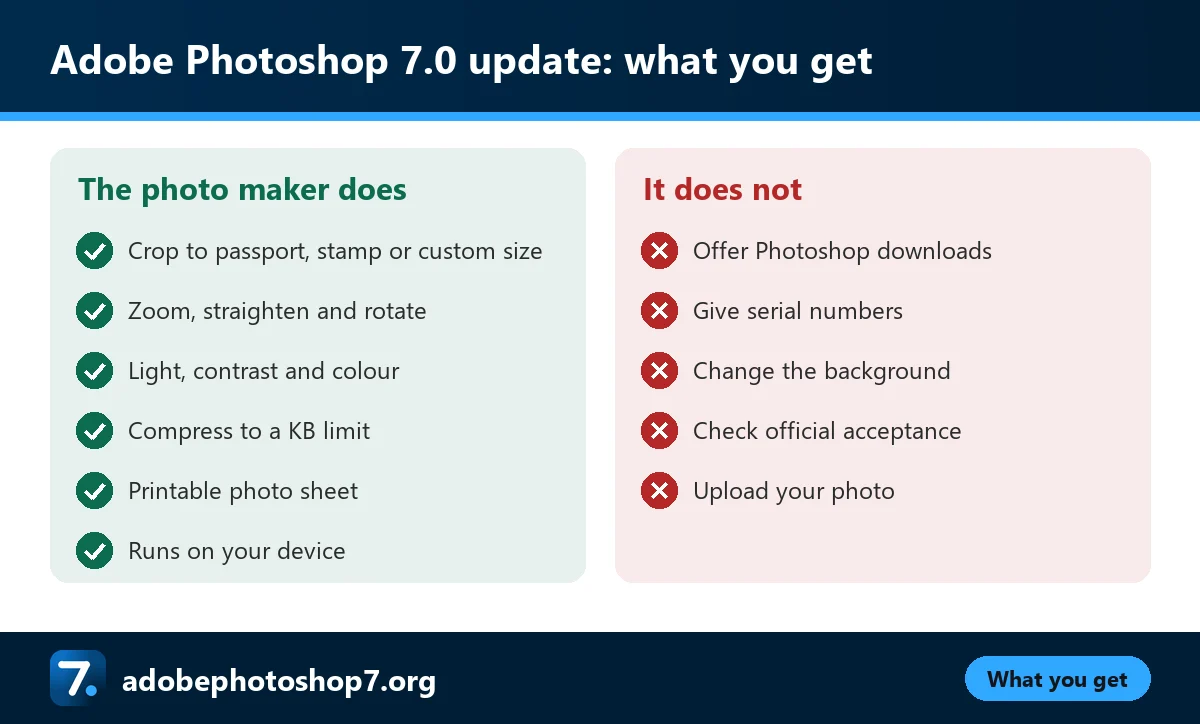
For a single passport or stamp photo, you may not need Photoshop at all. Our browser-based passport and stamp photo maker crops, adjusts brightness and contrast and builds a print sheet. It does not change backgrounds, retouch or run Photoshop.
How to ask for help with a Photoshop 7.0 fault
A clear description gets a useful answer faster. Include these details whether you ask a colleague, a forum or a repair technician.
- Your Photoshop version from the About screen.
- Your operating system and whether it is 32-bit or 64-bit.
- The exact error text, copied letter for letter.
- The steps that lead to the fault.
- Whether it happens with every file or only one.
- What you already tried.
Hide serial numbers, names and customers' photos in any screenshot before sharing it. Never post your licence details in public. If you spot a mistake on this page, you can contact us. We are an independent site, not Adobe, and cannot provide official support.
Frequently asked questions
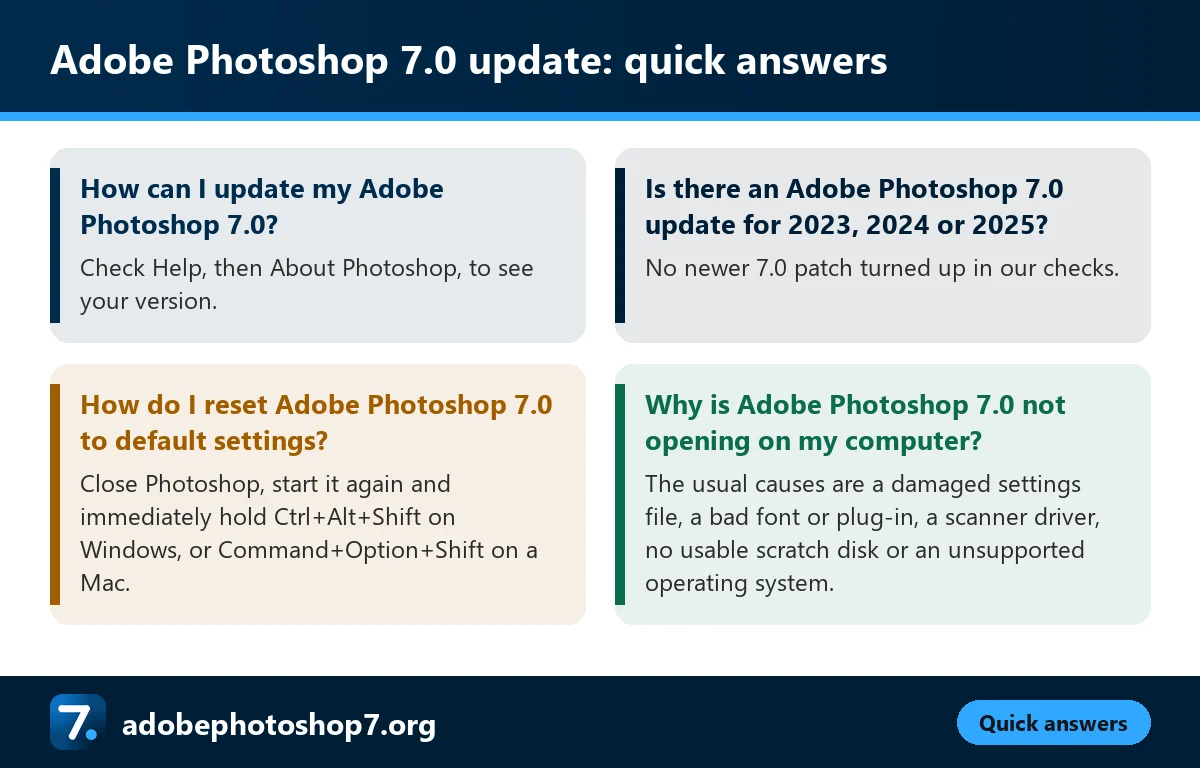
How can I update my Adobe Photoshop 7.0?
Check Help, then About Photoshop, to see your version. If it says 7.0, the only patch to look for is Adobe's 7.0.1 update for your platform and language. Close Photoshop, run the file obtained from Adobe, follow the setup screens and check the version again. You need an installed, licensed copy. Do not take update files from download sites.
Is there an Adobe Photoshop 7.0 update for 2023, 2024 or 2025?
No newer 7.0 patch turned up in our checks. The 7.0.1 update remains the last one we could find for this version. Pages that attach a recent year to "Photoshop 7.0 update" are not announcing new Adobe software. Treat their downloads as untrusted, especially if they are large, promise a full version or ask you to switch off security tools.
How do I reset Adobe Photoshop 7.0 to default settings?
Close Photoshop, start it again and immediately hold Ctrl+Alt+Shift on Windows, or Command+Option+Shift on a Mac. When asked whether to delete the settings file, choose Yes. Preferences return to defaults, including scratch disk, units and palette positions. Your photos stay as they are. Note your important settings before doing this on a shared work computer.
Why is Adobe Photoshop 7.0 not opening on my computer?
The usual causes are a damaged settings file, a bad font or plug-in, a scanner driver, no usable scratch disk or an unsupported operating system. Note the last line on the loading screen. Then reset preferences, check disk space, unplug the scanner and remove recent additions. Windows 10 and 11 are not supported for this version, so some computers may never run it reliably.
Does Photoshop 7.0 need a driver?
Photoshop itself has no separate driver. Printers, scanners, graphics cards and pen tablets need drivers, and those come from the device maker or from Windows. A page offering an "Adobe Photoshop 7.0 driver" download is usually mislabelled or unsafe. Identify the device that fails, note its model number, and get its driver from the manufacturer's own support site.
Can I update Adobe Photoshop 7.0 to CS5 or CS6?
Not with any patch. CS5 and CS6 are separate products that needed their own licences, and community posts report that Adobe has stopped selling them. Avoid "upgrade packs" that claim to convert 7.0. If you need newer features, look at Adobe's current plans on its own website or at other editors, and keep a copy of your old files.
What is Adobe Photoshop 7.0.1?
It is a small bug-fix update for Photoshop 7.0. Adobe's notes mention corrections for total ink defaults, CMYK JPEG whites, LZW TIFF writing, Targa transparency, some large 16-bit resampling and freezes with KPT3 filters. It adds no major features and no camera raw support. It applies only to an existing 7.0 installation and does not provide a licence.
Where can I get the Adobe Photoshop 7.0 update file?
Look only at Adobe's support downloads page for the 7.0.1 update, listed under Sources on this page. The server showed an expired certificate when we checked, so availability may change. Do not bypass browser warnings, and do not replace it with a copy from an archive or download site. If you cannot get it safely, continue using 7.0 without the patch.
How do I fix the Photoshop 7.0 scratch disk full error?
Free space on the drive, then choose a roomier internal drive under Edit, Preferences, Plug-Ins and Scratch Disks. If Photoshop will not start, hold Ctrl+Alt during launch to reach that choice. Very large modern drives can be invisible to 7.0, so a drive or partition under 1 TB may be needed. Restart after changing the setting.
Why does Adobe Photoshop 7.0 say error 115?
We could not find an Adobe explanation for it. Older forum posts mention error -115 during installation and suggest copying your own installation disc to the hard drive and running setup there. Low disk space and a damaged disc are other things to check. Record the full message, and avoid repair utilities promoted by generic error websites.
Why are my new fonts not showing in Photoshop 7.0?
Close Photoshop before installing the font, then open it again. If the font still does not appear, move the AdobeFnt list files aside so that Photoshop rebuilds its list at the next start. Also confirm that the font installs correctly in Windows and is not damaged. The first start after rebuilding may take noticeably longer than usual.
Why will my scanner not work with Photoshop 7.0?
Photoshop 7.0 commonly depends on the scanner's TWAIN driver, and many newer devices or 64-bit systems do not supply one that works with it. First test the scanner with its own software. If scanning works there, save the picture as TIFF or JPG and open it in Photoshop. This avoids the old connection between the two programs altogether.
Can Photoshop 7.0 open PSD files from newer versions?
Often partly, but not reliably. The picture may open while newer layer types, effects or text behave differently or become flattened. Work on a copy and compare it with a preview image from the sender. Ask them to save with maximum compatibility, simplify special layers and supply a TIFF as a fallback when exact appearance matters.
How do I make Photoshop 7.0 run faster?
Check Efficiency in the status bar first. If it falls below 100%, give Photoshop somewhat more memory, choose a scratch disk with free space, close extra images and work with smaller pixel dimensions. If Efficiency stays at 100%, the filter or brush is simply demanding. Try a smaller test area before applying a slow effect to the whole picture.
Will reinstalling Photoshop 7.0 fix my problem?
It can help when program files are damaged or the updater cannot find the application. It often does not clear faults caused by preferences, fonts, drivers or an unsupported operating system, because those remain afterwards. Reset preferences and test other causes first. Before uninstalling, confirm that you have your genuine installation media and licence details, plus copies of custom files.
Why is my printout from Photoshop 7.0 too big or too small?
Check Image Size for the document's printed width, height and resolution. Then open Print with Preview and make sure the scale is 100% and Scale to Fit Media is off. Confirm the paper size in Page Setup and look for fit-to-page or borderless settings in the printer driver. Measure a test print with a ruler.
Our recommendation for fixing Photoshop 7.0 problems
Start with the cheapest reversible change, and move to bigger ones only when it fails. Our suggested order is this:
- Write down the exact symptom.
- Back up files and settings.
- Restart and check free disk space.
- Try a narrow reset, then a full preference reset.
- Remove recent fonts, plug-ins and devices.
- Update device drivers from their makers.
- Apply 7.0.1 only if you have it from Adobe and its fixes matter to you.
- Reinstall from your own genuine media.
- Switch tools if the fault is a platform limit.
For a studio that depends on 7.0, also plan the replacement now, while the old setup still works. Open a few typical customer files in your chosen alternative and check fonts, layers and print size before you rely on it.